Camera access
Use USB, CSI, IP, and ROS 2 cameras from WendyOS apps
Camera Access
Camera access is used for webcam streaming, computer vision, image capture, and ML inference pipelines. WendyOS keeps camera devices hidden from apps by default, so your project needs a camera entitlement before the app can open /dev/video*.
Add the entitlement from your project directory:
wendy project entitlements add cameraThe older video entitlement is still accepted for compatibility, but new projects should use camera.
For complete examples, follow these tutorials:
A live stream can still contain stale or poor-quality observations. Check capture timestamps, exposure, motion blur, and calibration at the resolution your app uses. The sensor fidelity exercise helps compare ideal simulated input with hardware.
Inspect Cameras on a Device
Use the device camera commands to see which cameras WendyOS can see:
wendy device camera listThe output includes a device ID, transport type (usb, csi, ip, or ros2), name, and — for local cameras — a path such as /dev/video0. Network cameras show their address, while ROS 2 cameras show their topic. Network cameras without a stored login are hidden, and the table ends with how many it hid; --all shows them with a Status of needs login. See IP Cameras to pair one. Use the ID with view commands:
wendy device camera view --id 0To request a specific stream shape:
wendy device camera view --id 0 --width 1280 --height 720 --fps 30If you want to pipe the encoded stream instead of opening a local preview window:
wendy device camera view --id 0 --stdoutA view that names no --width, --height or --fps joins the camera at
whatever it is already doing, and an episode capture whose campaign does name
stream parameters may restart the producer under it. The stream is ended rather
than spliced, because the replacement producer emits a new sequence parameter
set; camera view then rejoins the new stream by itself and prints one line
saying so. Naming stream parameters yourself makes the view a holder that no
campaign can take over.
For broad hardware inspection, filter the device capability list:
wendy device hardware list --category cameraShare a camera opened by an app
Wendy viewers and snapshots share one capture stream. If an app opens the camera directly, for example through the RealSense SDK, Wendy can reuse that app's JPEG feed when the device reports that it is busy. The app keeps running and retains the camera.
To support automatic sharing, the process holding the camera must serve
GET /frame.jpg on a TCP listener bound to the host's loopback or wildcard
address. Each successful response must include:
Content-Type: image/jpegX-Captured-At-Unix-Ns: the frame's capture time in Unix nanoseconds- A complete JPEG no larger than 8 MiB or 4096×2160 pixels
Wendy accepts frames captured within the last two seconds and polls at up to
10 frames per second. Omit --fps when viewing an app-owned JPEG feed, since
Wendy cannot reconfigure its capture rate. Repeated capture timestamps do not
create new frames.
It checks only listeners belonging to the camera process, does not follow
redirects, and respects HTTP errors such as a locked feed. A process holding
multiple color cameras is ambiguous and is not selected automatically.
Depth and infrared nodes do not inherit the color feed. Private container
network namespaces and original raw frames are not supported by this JPEG
fallback.
Wendy Lite cameras
Select a Wendy Lite board in the device picker, or use one saved as your default, to list and view its SensorLink video channels directly:
wendy device camera list
wendy device camera view
wendy device camera view --id 4 --stdout > camera.mjpeg
Use a channel ID from camera list. A single video channel is selected automatically;
multiple channels open a picker. With --non-interactive, pass --id when several
channels match. Audio and other sensor channels are excluded.
The connection uses the board's existing USB, LAN, or BLE provider and its normal
credentials. The firmware must support SensorLink over WendyCom, including the
manifest and chunked SensorData messages.
The viewer supports MJPEG and H.264. --stdout writes the channel's encoded bytes
without transcoding, so use the codec shown by camera list when saving or piping
video. --width, --height, and --fps select an advertised channel with that
format; they cannot reconfigure or resize a stream. --stable-id and --raw are
unavailable for Lite cameras.
camera list --refresh fetches a fresh manifest. Its --json output is an array
of video descriptors with channel_id, input_id, name, and video format fields.
Channels sharing an input_id are alternative modes of the same input.
ROS 2 Camera Topics
The WendyOS agent automatically presents ROS 2 video publishers as ordinary
cameras. It recognizes sensor_msgs/msg/Image and JPEG-encoded
sensor_msgs/msg/CompressedImage, allocates each topic a stable ID from
128–199, and feeds a matching /dev/video<ID> v4l2loopback device. The
topic then works with the same commands as a USB camera:
wendy device camera list
wendy device camera view --id 128
App-local ROS 2 graphs stay app-local. The agent creates its DDS reader inside the running app's network namespace instead of changing the app's discovery scope. Host/robot feeds on domain 0 are discovered on wired interfaces.
DDS discovery on host-facing wired interfaces is unauthenticated. WendyOS treats peers on those robot networks as trusted: any peer publishing a supported image topic on domain 0 can appear as a camera. Keep untrusted devices on a separate network segment.
Unitree Go2 robots receive special handling: the native
unitree_go/msg/Go2FrontVideoData publisher on /frontvideostream appears as
Unitree Go2 front camera. Wendy accepts both the SDK-declared JPEG fields
and the resolution-tagged Annex-B H.264 layout emitted by current Go2 firmware,
preserving either codec through the loopback rather than transcoding it.
ROS 2 camera mirroring requires v4l2loopback 0.15.x's dynamic control API; the WendyOS recipe is pinned to 0.15.4. Ubuntu 22.04's packaged 0.12.7 DKMS module is not compatible even if it loads successfully. If a compatible module is installed or loaded after an initial failure, retry the camera command; the agent rechecks availability without requiring a restart.
The loopback uses exclusive capabilities. A container process that opens its device immediately at startup may briefly find it output-only while the first ROS 2 frame configures the capture format. Retry the initial format/open step for up to the agent's 15-second first-frame window.
IP Cameras
WendyOS also manages network (RTSP/ONVIF) cameras alongside local USB and CSI ones. A discovered camera is registered by its MAC address — the one identity that survives a DHCP address change — and given a device ID from a reserved band, 200–255.
Discovery finds every ONVIF camera on the networks the device is connected to, including other people's cameras on a shared home or office LAN. So a network camera is used only once you store a login for it, which pairs it. Until then it is hidden from camera list, apps, and other clients, and WendyOS sends it nothing beyond the periodic discovery probe. A paired camera's ID never changes, even if its address does. An unpaired camera's ID can change when the agent restarts.
Connect a camera directly to Ethernet
If a camera is plugged into a dedicated Ethernet port, WendyOS can give it a network address. Leave this disabled on a shared LAN or the device's internet uplink, where another DHCP server normally assigns addresses.
-
Find the dedicated port:
wendy device camera dhcp status -
Enable camera addressing on that port, replacing
eth1with its name:wendy device camera dhcp enable eth1 wendy device camera dhcp status -
Wait for
serving, then pair the camera in the IP Cameras tab ofwendy device pair, or find its ID withwendy device camera list --refresh --alland store its login as described under Credentials.
waiting means the port is not ready yet. blocked or degraded includes a
reason, such as a competing DHCP server or an address conflict. The agent checks
the link periodically and stops serving if it detects an uplink or another server.
Enabling a port alone does not mean a camera is connected.
To disable it:
wendy device camera dhcp disable eth1Settings and unexpired address reservations survive restarts and OS updates.
If you rename the interface, enable its new name explicitly. Add --device
to select a WendyOS device and --json for scripting.
DHCP status for scripts
wendy device camera dhcp status --json returns an interfaces array:
| Field | Meaning |
|---|---|
interface_name | Port name. |
enabled | Saved permission to assign camera addresses. |
serving | The address server is currently active. |
present, carrier, up | Port exists, has a link, and is enabled by the OS. |
ipv4_addresses | Current addresses in CIDR notation. |
state, detail | Current status and an explanation. |
Top-level configuration_error and interface_error describe failures reading
saved settings or inspecting ports. Missing false booleans and empty arrays may
be omitted; do not treat an inspection error as an empty port list.
Discover and use the camera
Cameras are picked up automatically as the agent's periodic discovery runs. To force a discovery round immediately and list the results in one step:
wendy device camera list --refreshPaired network cameras appear in the same camera list table as local ones, with ip in the Type column, the camera's address in the Where column, and a Status of offline or ready. The table ends with the number of cameras it hid for having no login. To pair one, use the IP Cameras tab of wendy device pair, or find its ID with:
wendy device camera list --all--all adds the unpaired cameras with a Status of needs login.
Credentials
Most IP cameras require a login before they will stream, and storing one is also what pairs a camera. Store one with:
wendy device camera login <id>This prompts for the password without echoing it, or reads it from the WENDY_CAMERA_PASSWORD environment variable when there is no terminal to prompt on (for example, in CI). The username defaults to admin; pass --user to override it. A camera that needs no login can be paired by pressing Enter at the password prompt. Credentials are stored on the device and are never returned by any command.
Remove a camera and its stored credentials with:
wendy device camera forget <id>To validate a camera's stored login without starting a stream:
wendy device camera test <id>test dials the camera's RTSP port directly and reports one of three outcomes: the credentials were accepted, the camera rejected them (with a wendy device camera login <id> hint), or the camera was unreachable. One nuance worth knowing: a camera that never actually challenged for a login — no authentication required, or just a bad stream path — is still reported as success, with a detail like "did not request authentication; the stream path returned RTSP 404 and may be wrong" rather than claiming the credentials were verified.
wendy device camera view --id <id> works the same way for network cameras as for local ones. If no credentials are stored yet, it reads user/password from a camera entitlement in wendy.json if present, or prompts once interactively, before retrying the stream — see the camera entitlement fields for the wendy.json-based option and its plaintext-storage caveat.
Container Access
Apps with the camera entitlement (see Camera Entitlement) see network cameras exactly like local ones: each paired camera is mirrored into a /dev/video2xx loopback node numbered to match its own device ID — camera 212 is always /dev/video212 — and mounted into the container the same way USB and CSI devices are. Pairing a camera while such an app runs adds its node without restarting the app.
The loopback node always carries the camera's sub-stream — the same lower-resolution feed camera view chooses automatically for anything ≤1024px wide. There is currently no way for a container to request the camera's main/high-resolution stream instead.
Builds without the kernel module: mirroring a camera into a container needs compatible v4l2loopback 0.15.x support. On a WendyOS build that lacks it (or in local development), the agent logs this once and moves on:
running build lacks compatible v4l2loopback 0.15.x support
Direct IP-camera wendy device camera view and camera test are unaffected;
only the in-container /dev/video2xx mirror is unavailable. ROS 2 cameras
use a loopback node for both viewing and container access, so neither path is
available until the compatible module is present.
App Configuration
A minimal wendy.json camera app looks like this:
{
  "appId": "com.example.camera",
  "platform": "linux",
  "version": "1.0.0",
  "entitlements": [
    { "type": "camera" }
  ]
}
To restrict the app to one camera device:
{
  "type": "camera",
  "allowlist": ["/dev/video0"]
}
Common Pairings
Camera apps often also need:
networkfor HTTP or WebSocket video streamsgpufor NVIDIA Jetson inference or accelerated image processingpersistfor saving snapshots or clips
For a camera plus GPU app:
wendy project entitlements add camera
wendy project entitlements add gpu
Then deploy:
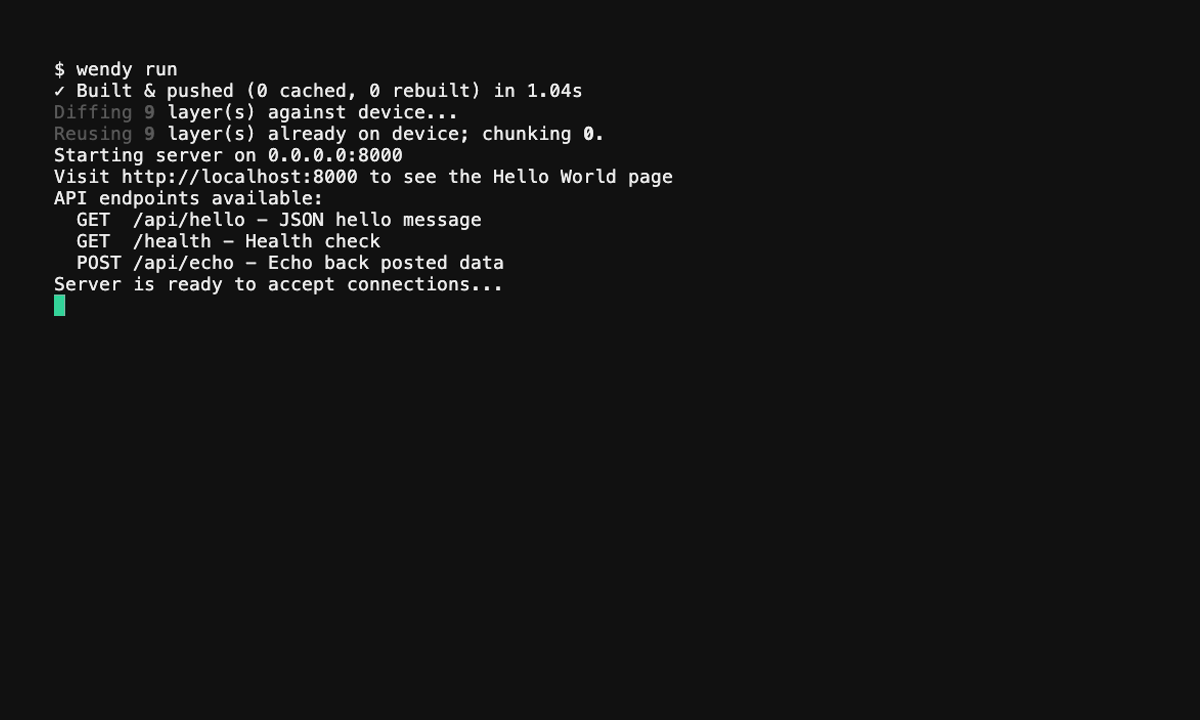
wendy run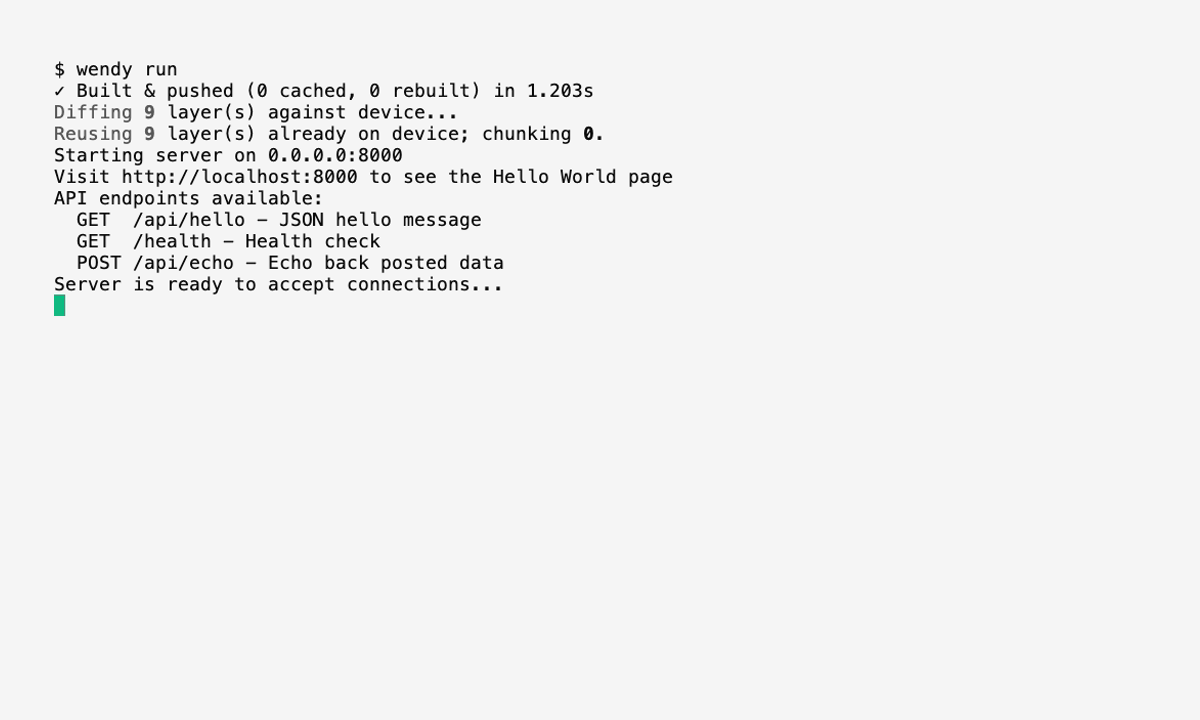
Camera identities in site models
Persist stable_id from the camera inventory when associating a camera with a
site marker. Pass that exact value to StreamVideoRequest.stable_id or
wendy device camera view --stable-id <value>. The agent resolves it when the
stream opens and rejects a missing identity instead of falling back to a reused
/dev/videoN number.
USB cameras use the existing by-id: or by-path: names. Paired SensorLink
cameras use sensorlink:<pairing-key>:<channel-id> and registered IP cameras use
ip-mac:<mac>. ROS cameras use ros2:<key>, scoped to their graph, domain and
topic so identical topic names in isolated apps stay distinct. A blank stable ID means the source cannot yet be saved safely as
a site camera. Marker placement is manual and does not calibrate the camera.
Native clients can discover enrolled SensorLink sources through the selected gateway without a terminal UI:
wendy --device <gateway> --json device sensors list
wendy --device <gateway> --json device sensors add --source <principal_uri>
wendy --device <gateway> --json device sensors status
add chooses one exact enrolled principal from a new gateway-side discovery,
checks organization access, and lets the gateway verify the source certificate.
The returned pairing can have connected: false; saving a pairing is not proof
of arriving sensor data. These commands do not enroll a blank board or update
its firmware. CLI enrollment of a new Wendy Lite board requires USB; the native
macOS and iOS apps also offer Bluetooth setup on supported firmware.
For a USB-connected Wendy Lite board, use wendy discover --json --type external --timeout 5s; the usb discovery filter alone scans WendyOS USB connections.
The external result includes the exact wendy-lite:/dev/cu... selector.
wendy --device <selector> --json device enrollment-status reads its hardware
ID, enrolled device UUID and tenant over USB without changing enrollment. Use
that UUID to match the source's gateway pairing instead of relying on its name.
A direct USB camera subscription can report device busy while a gateway owns
the source. In that case, view the gateway's shared feed.