Connecting to Wi-Fi
Connect your WendyOS device to a Wi-Fi network using the Wendy CLI
Connecting to Wi-Fi
This guide will help you connect your NVIDIA Jetson or Raspberry Pi 5 running WendyOS to a Wi-Fi network using the Wendy CLI.
Prerequisites
- WendyOS device (NVIDIA Jetson or Raspberry Pi 5) connected via USB-C
- Wendy CLI installed on your development machine
- Wi-Fi network credentials
Connection Steps
Open the Wi-Fi Manager
With your device connected via USB-C, run:
wendy device wifiThis opens an interactive table of nearby Wi-Fi networks, showing which ones are already Known to the device, the current connection Status, security type, and signal strength.
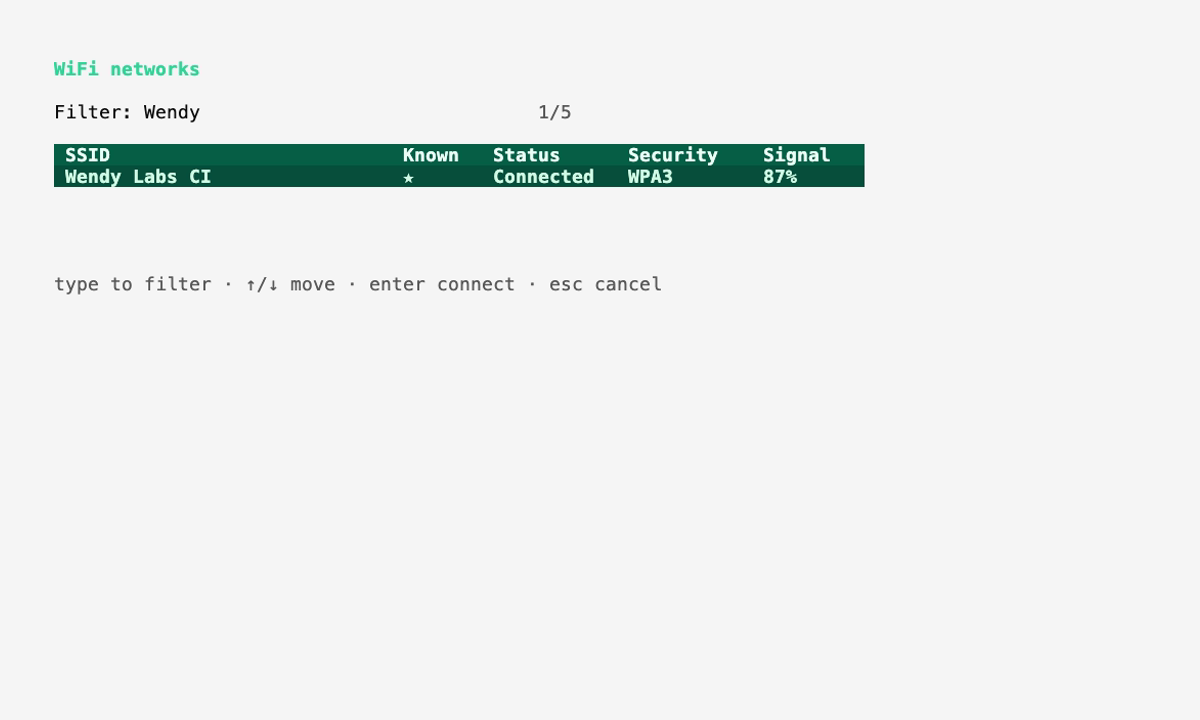
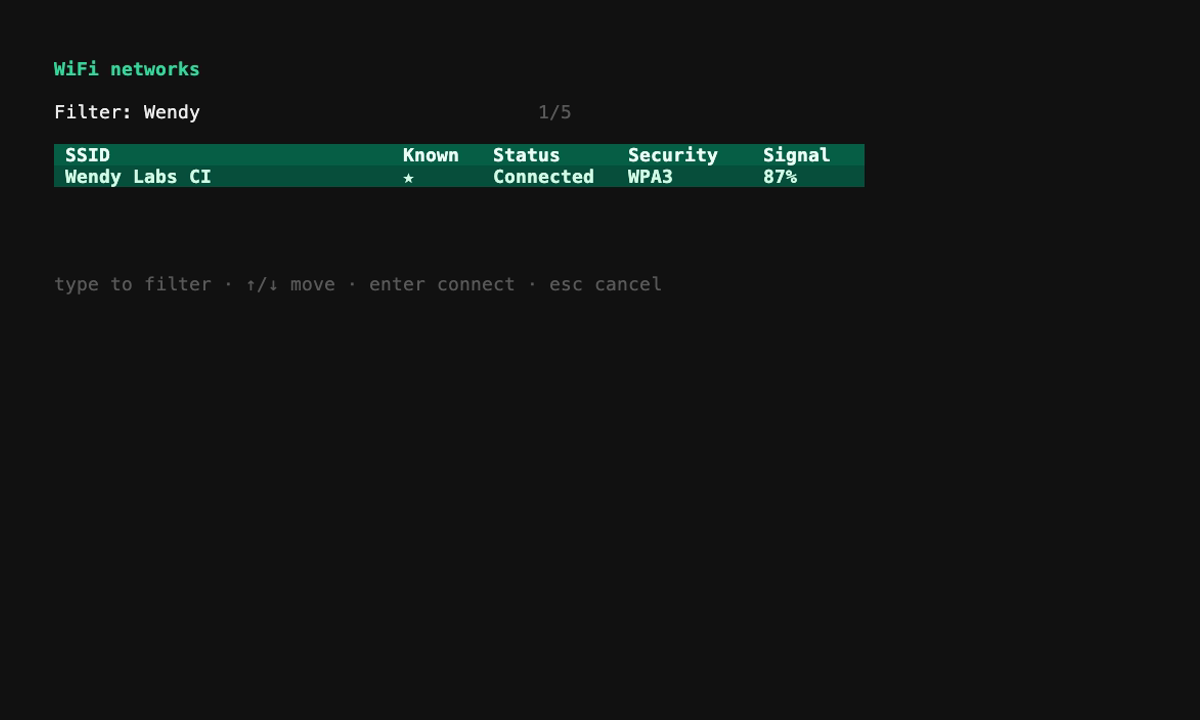
Use the ↑/↓ arrow keys to move through the list, or press / to filter by name as you type.
Connect to a Network
Highlight the network you want and press Enter. If it's password-protected and not already known, you'll be prompted for the password. To join a hidden network that isn't listed, press n to enter its name and password manually.
Once connected, the network's Status column updates to Connected. Press q to exit the manager.
Wireless USB-Free Development: If your developer machine and the newly connected WendyOS device are on the same SSID and your network allows mDNS/Bonjour/Avahi, you'll be able to connect and use the CLI commands without USB! Simply disconnect the USB cable and continue using wendy commands wirelessly.
Troubleshooting
If you're having trouble connecting to Wi-Fi:
- Device not appearing: Ensure your device is powered on and connected via USB-C
- Wrong password: Run the command again and double-check your Wi-Fi password
- Connection timeout: Check if your Wi-Fi network is in range and functioning properly
- mDNS not working: Some routers disable mDNS/Bonjour by default. Check your router settings or continue using USB connection
Next Steps
Now that your device is connected to Wi-Fi, you can:
- Deploy applications wirelessly
- Access remote logging without USB
- Use over-the-air updates
- Manage your device from anywhere on the same network