Camera Feed in TypeScript
Start a live camera feed app on WendyOS using the TypeScript camera template
Live Camera Feed with TypeScript
Use the Wendy camera template when you want a browser-viewable camera stream without wiring the project from scratch. The template ships an Express + WebSocket backend (src/index.ts) that runs a GStreamer pipeline to capture MJPEG frames from /dev/video0 and broadcast them over a /stream WebSocket, plus the browser UI (index.html, assets/), a Dockerfile, and a wendy.json with the network (host mode), camera, and gpu entitlements.
Prerequisites
- Wendy CLI installed on your development machine
- Node.js 22 or later installed
- A WendyOS device with a USB camera connected
Setting Up Your Project
Initialize the Project
wendy init typescript-camera --target wendyos --language node --template camera-feed --var APP_ID=typescript-camera --var PORT=5003 --assistant skip --git-init no
cd typescript-camera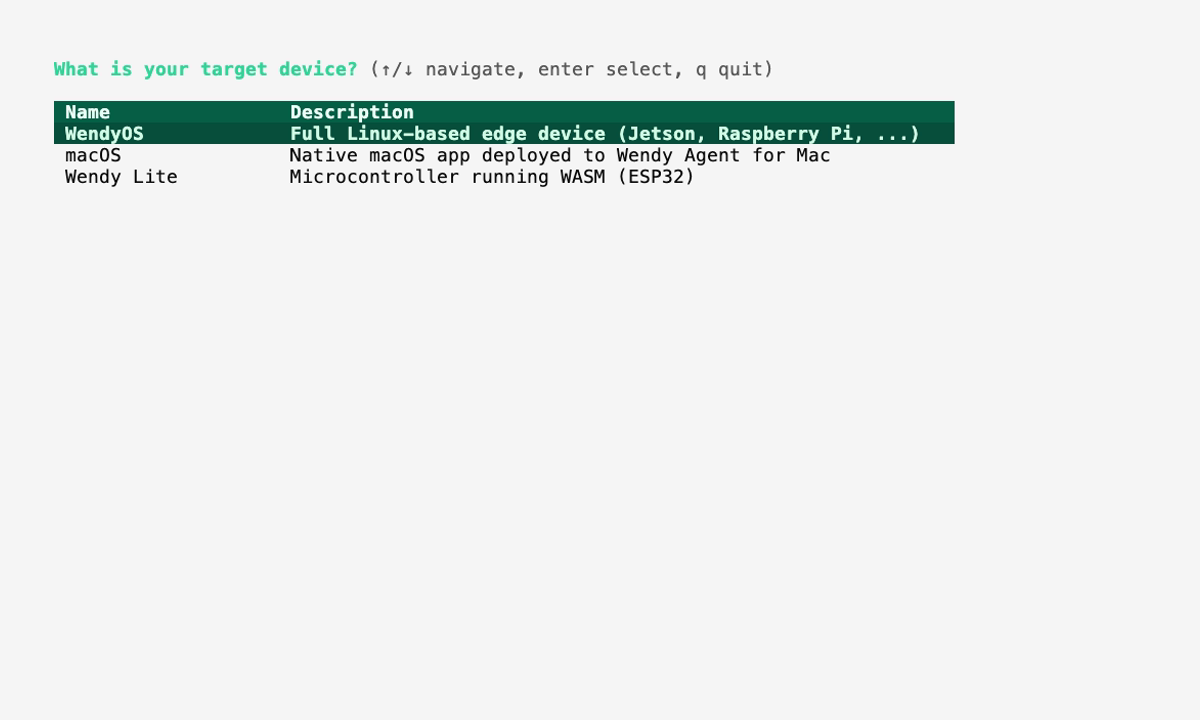
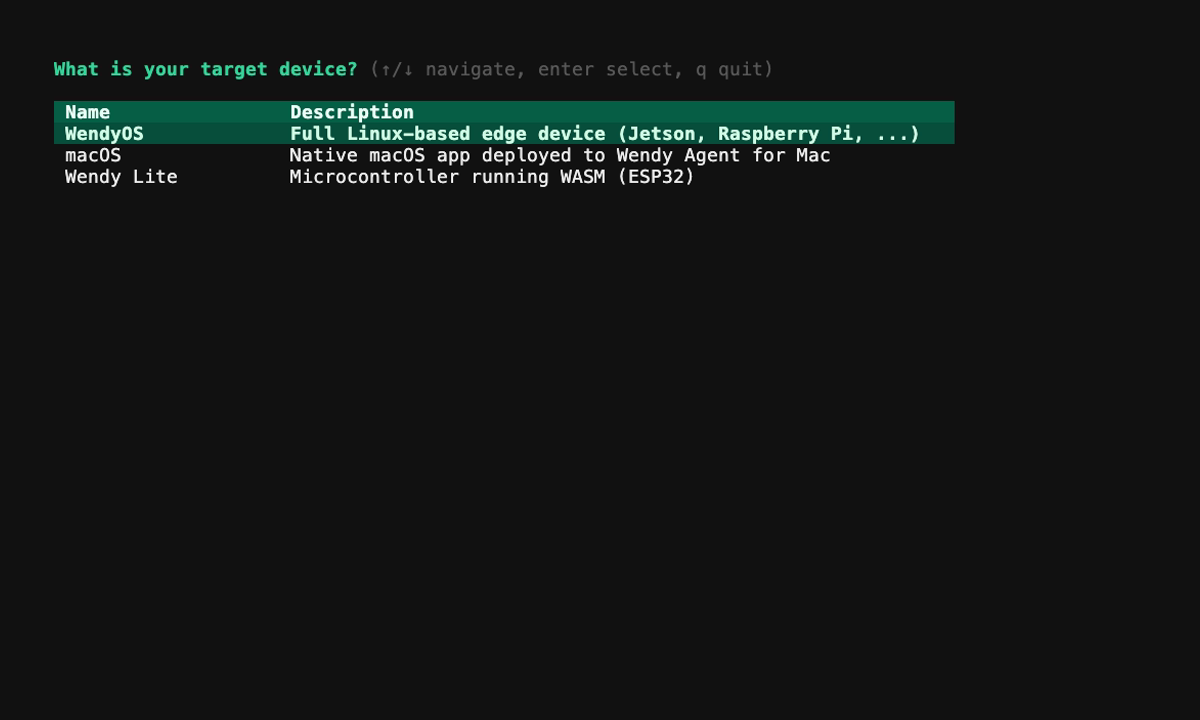
The generated project is ready to run. After the first run, use the sections below as a code breakdown when you want to understand or customize camera handling, routes, or UI behavior.
Run on WendyOS
wendy run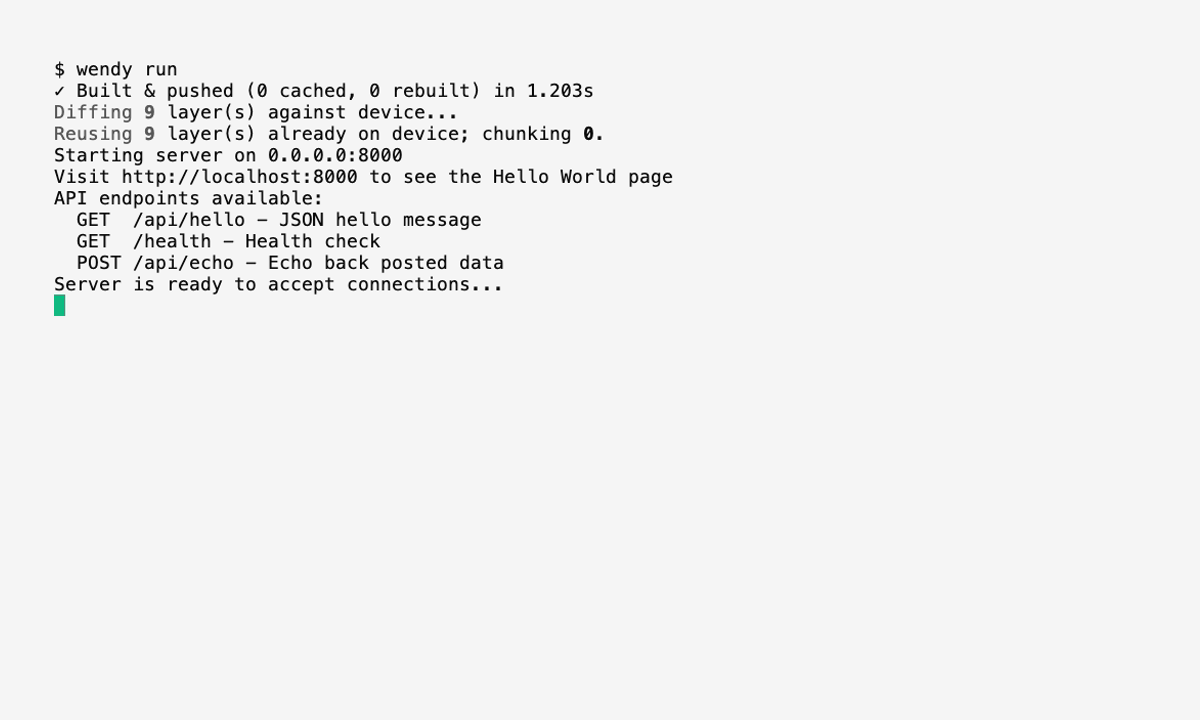
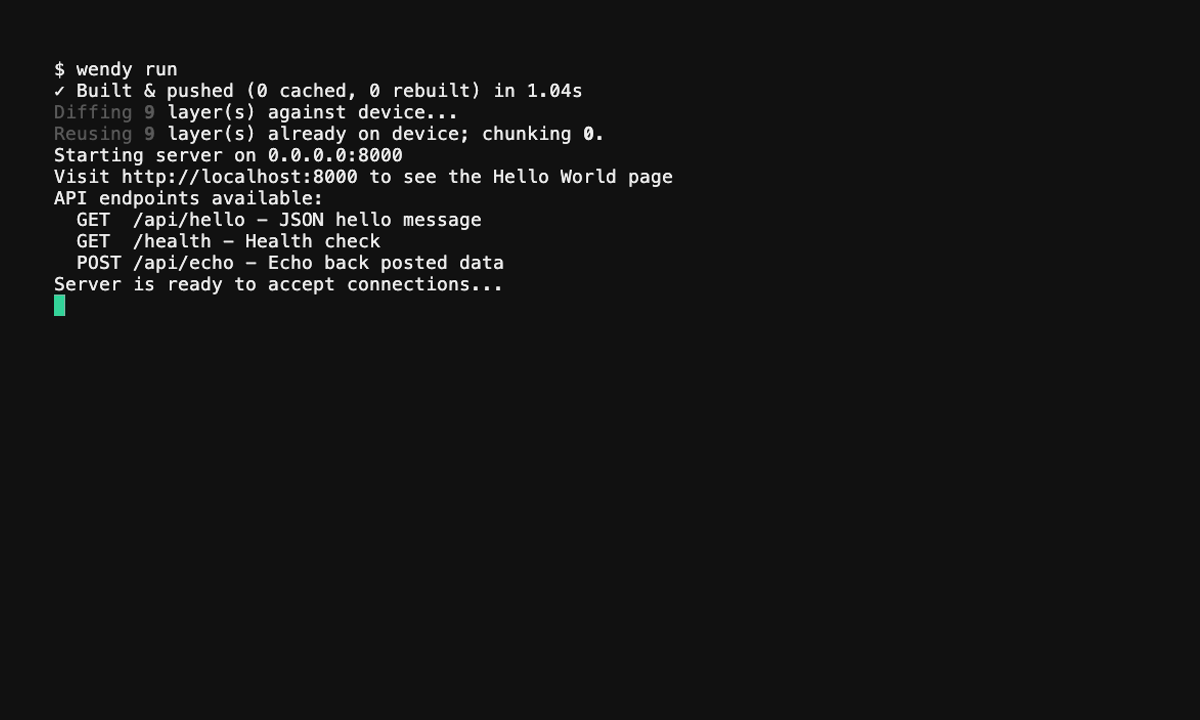
Wendy will build the app, ask you to select a device if one is not already configured, deploy the container, and print the app URL.
Code Breakdown
The generated wendy.json includes a readiness probe on port 5003 and a postStart hook that opens your browser automatically once the stream is ready. Otherwise, open the app URL from the Wendy run output to view the stream.
The backend in src/index.ts does the heavy lifting:
GET /serves the browser UI fromindex.html.GET /cameraslists connected cameras viav4l2-ctl --list-devices.- The
/streamWebSocket starts a GStreamer pipeline on the first client, extracts JPEG frames, and broadcasts them to all connected viewers; the pipeline is torn down when the last client disconnects. - Send a
{"switch_camera": "/dev/videoN"}message over the WebSocket to switch the active camera.
The runtime image installs the GStreamer plugin set and v4l-utils so the pipeline and camera enumeration work on the device.