Linux computer
Install wendy-agent on any Linux machine to turn it into a managed Wendy device
Overview
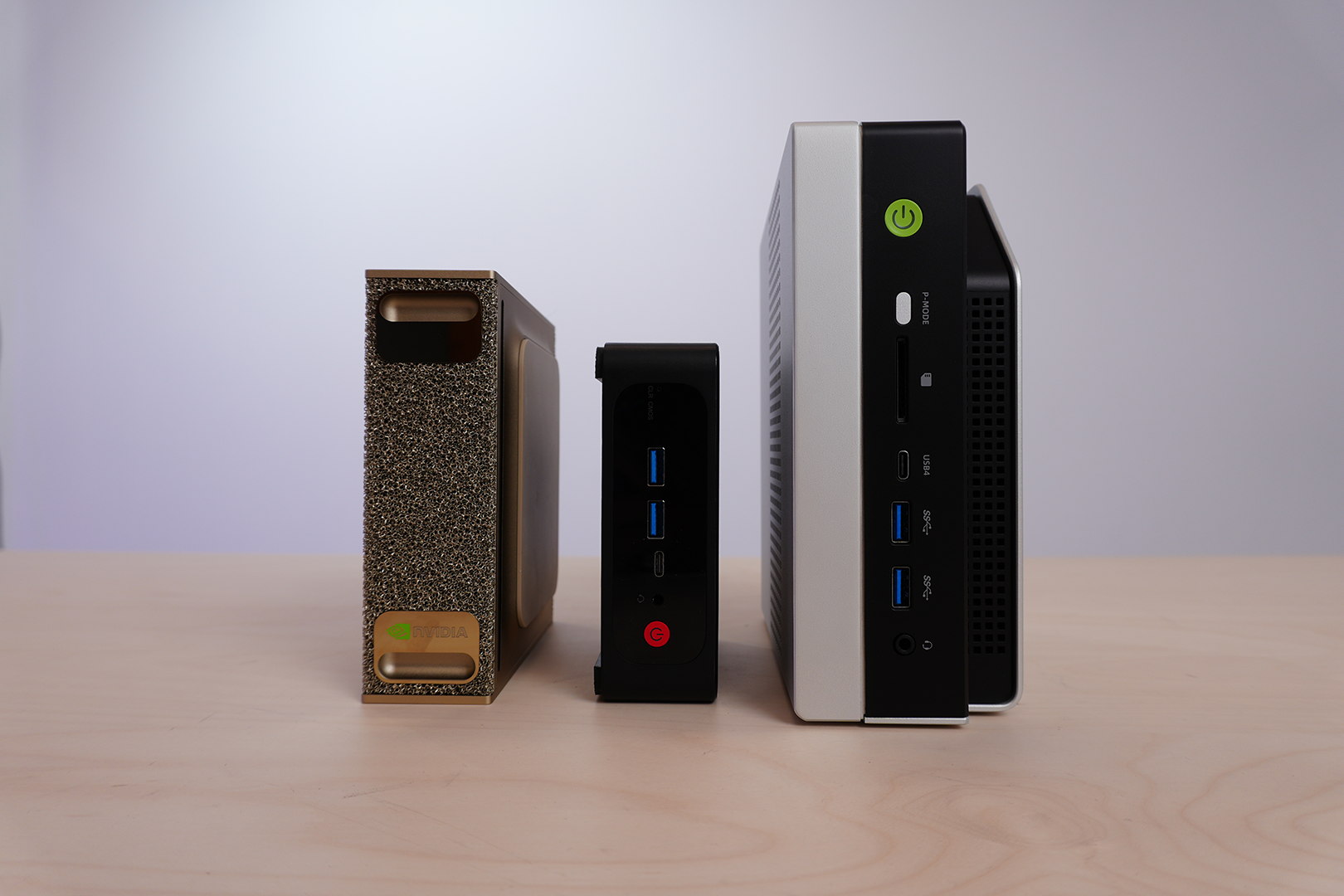
Install wendy-agent on any existing Linux installation, including Ubuntu, Debian, Raspberry Pi OS, DGX Spark, NUCs, cloud VMs, or any other ARM64 or x86-64 (Intel or AMD) machine, to turn it into a managed Wendy device. Ubuntu 22.04 or later is recommended. Wendy Agent is also known to work on Fedora, Arch, and other popular Linux distributions. Once installed, your wendy CLI and the device discover each other over the local network.
(wendy-agent is already built into WendyOS — Jetson Orin Nano, Jetson AGX Thor, Raspberry Pi. If you flashed WendyOS, skip this guide.)
Requirements
- A Linux machine. Ubuntu 22.04 or later is recommended; Fedora, Arch, and other popular Linux distributions are also known to work
curlinstalledsudoaccess
Installation
SSH or log into the target machine and run:
curl -fsSL https://install.wendy.dev/agent.sh | bashThis installs the wendy-agent service, which registers the device on your local network via mDNS so that the Wendy CLI on your developer machine can discover it.
Pre-enrolling into your org (optional)
Running wendy install and choosing Linux Desktop while logged in prints a
one-liner that carries a short-lived enrollment token:
curl -fsSL https://install.wendy.dev/agent.sh | \
  WENDY_ENROLLMENT_TOKEN=<token> WENDY_CLOUD_HOST=<cloud-host> bash
The agent enrolls into your organization on first startup. No wendy device enroll step needed. The token expires after about an hour, so run the command
promptly. Without these variables the agent installs unenrolled and is
discovered over your local network as described above.
If the device cannot reach Wendy Cloud during its first startup (for example,
because the network is not yet up), enrollment is skipped and the token file is
deleted. In that case, run wendy device enroll from the CLI once the device
is reachable over mDNS, or re-run wendy install to obtain a fresh token.
Verify the Installation
Check that the agent is running:
sudo systemctl status wendy-agentYou should see the service active and running.
Discovering Your Device
Once wendy-agent is installed and running, go back to your developer machine (where you installed the Wendy CLI) and run:
wendy discover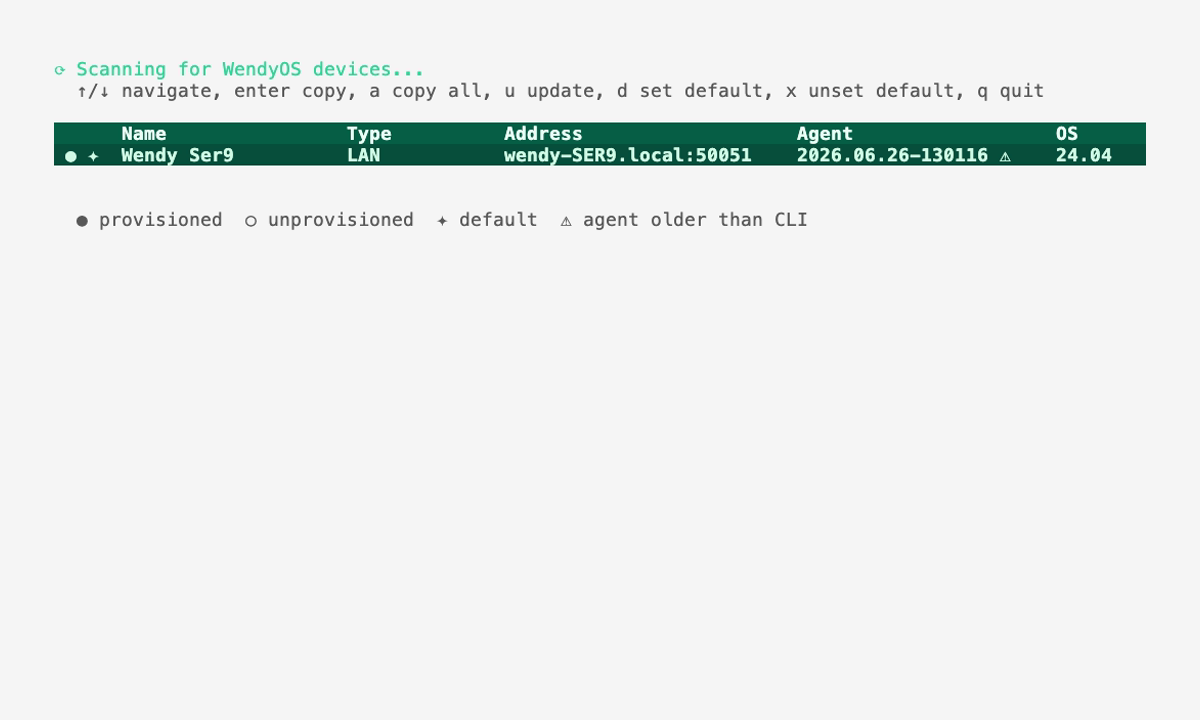
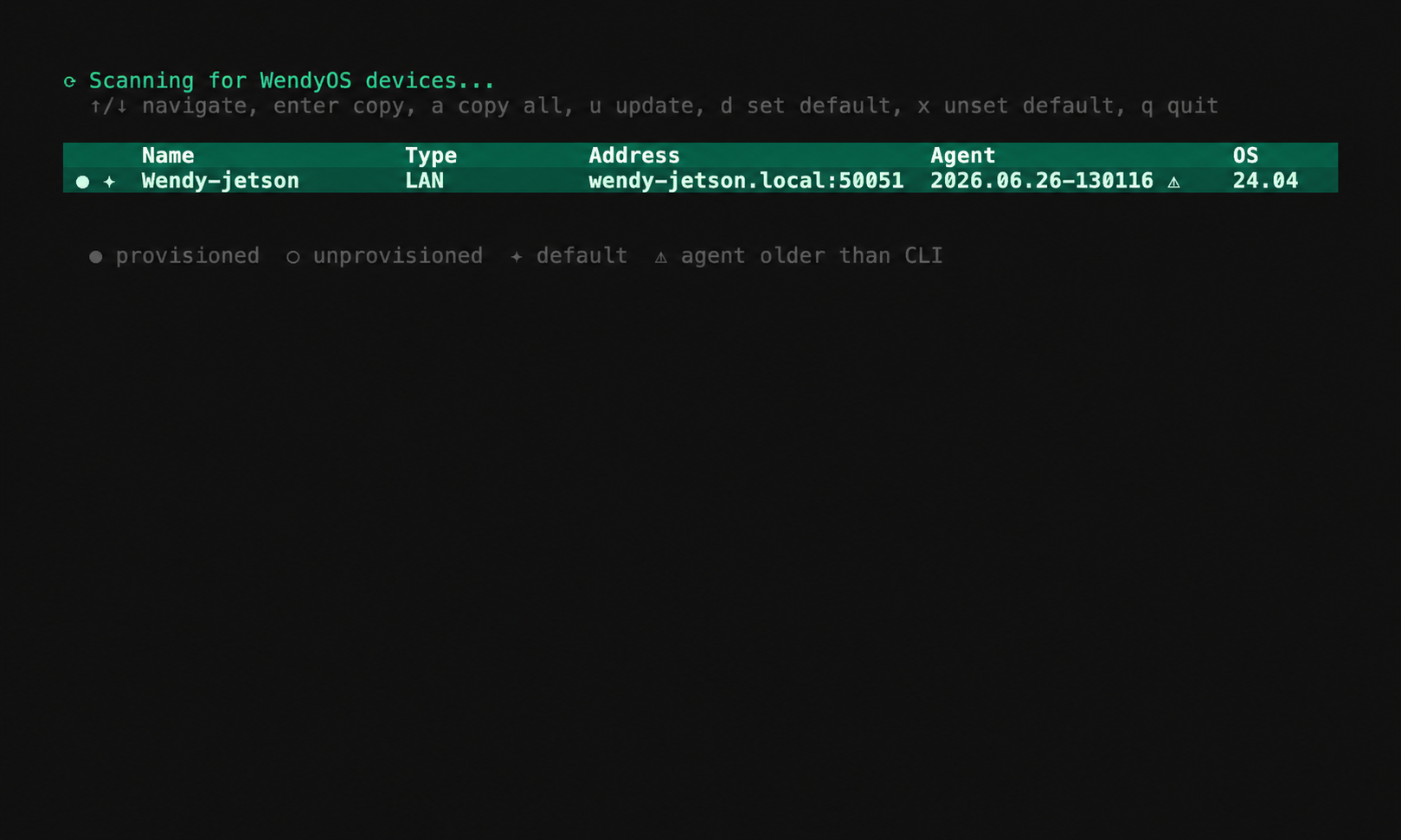
This uses mDNS to scan your local area network and list all devices running wendy-agent. You should see your newly configured machine appear in the list.
Deploying to Remote Devices
If your device is not on the same local network (e.g., a remote server, cloud instance, or a machine connected via a VPN like Tailscale or Headscale), mDNS discovery will not find it automatically. Instead, you can target the device directly by hostname:
wendy run --device {hostname}Replace {hostname} with the hostname or IP address of your remote machine. This works with any network topology, including Tailscale, Headscale, WireGuard, or plain SSH tunnels.
Next steps
Your Linux computer is ready. Continue with step 3 of the quickstart to create and run your first app.