Audio Playback & Streaming
Learn how to play sounds and stream microphone audio using Swift and GStreamer on WendyOS
Audio Playback & Streaming
Source Code: The complete source code for this example is available at github.com/wendylabsinc/samples/swift/audio
In this guide, we'll build an audio application that demonstrates two key capabilities:
- Audio Playback: Triggering sound effects on the device from a web interface.
- Microphone Streaming: capturing live audio from the device's microphone and streaming it to a web client for visualization and playback.
This demonstrates how to use GStreamer with Swift to handle complex multimedia pipelines on embedded Linux.
Prerequisites
- Wendy CLI installed
- Swift 6.2 or later installed via swiftly (Xcode's Swift is not supported)
- A WendyOS device with a speaker and microphone (or a USB audio interface)
Recommended Hardware: For the best experience, we recommend using a USB speakerphone like the Anker PowerConf plugged into your NVIDIA Jetson via USB. It provides high-quality audio capture and playback in a single device.
Setting Up Your Project
Initialize the Project
wendy init audio --target wendyos --language swift --template audio --var APP_ID=audio --var PORT=6004 --var SWIFT_VERSION=6.3 --assistant skip --git-init no
cd audio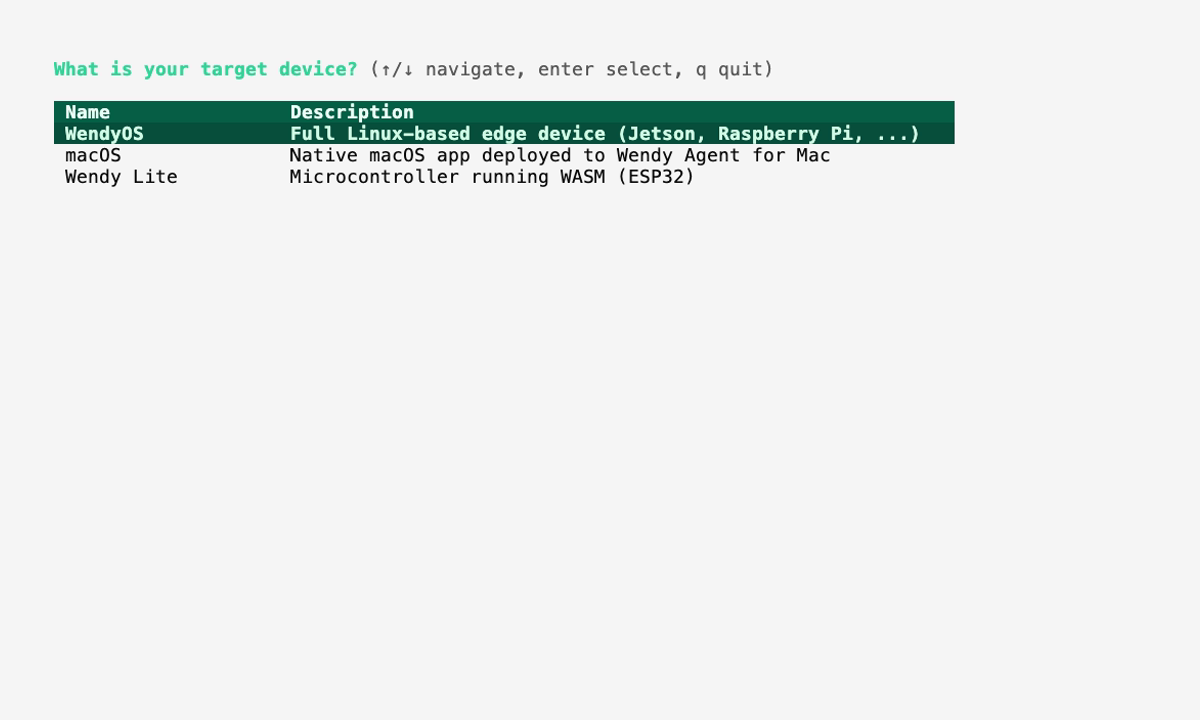
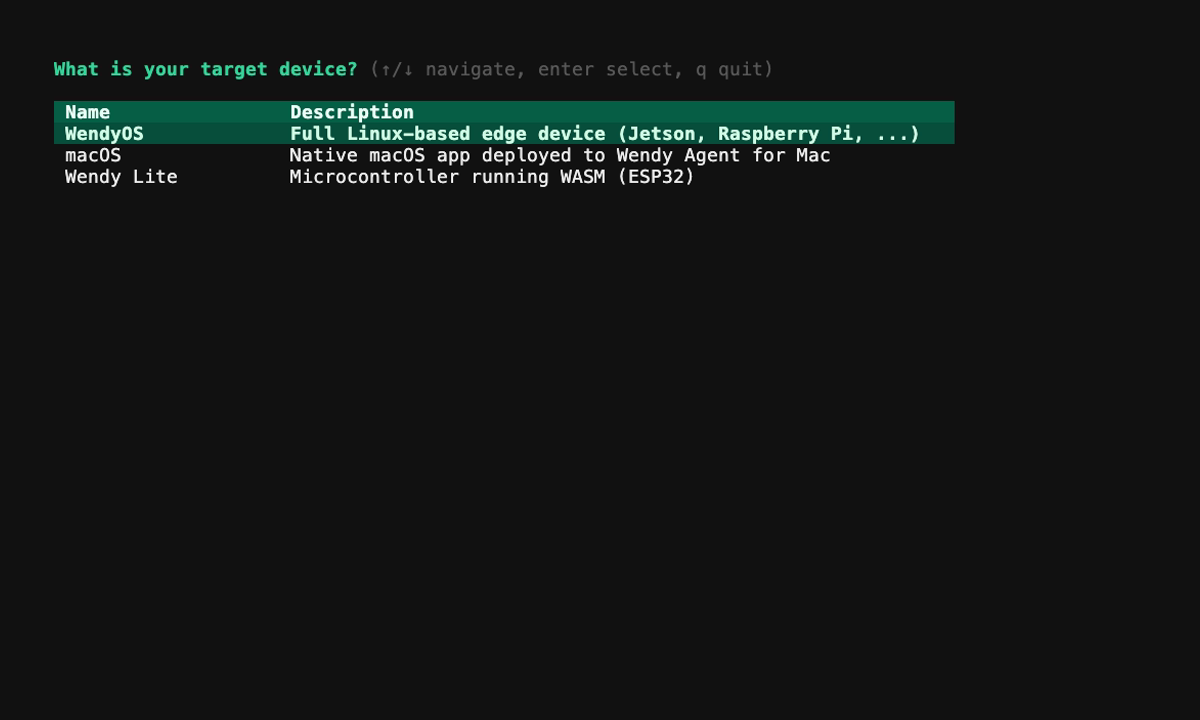
The template creates the Wendy config, Dockerfile, frontend, and Swift backend files with the audio entitlement already wired. The sections below explain the generated project.
Run on WendyOS
wendy run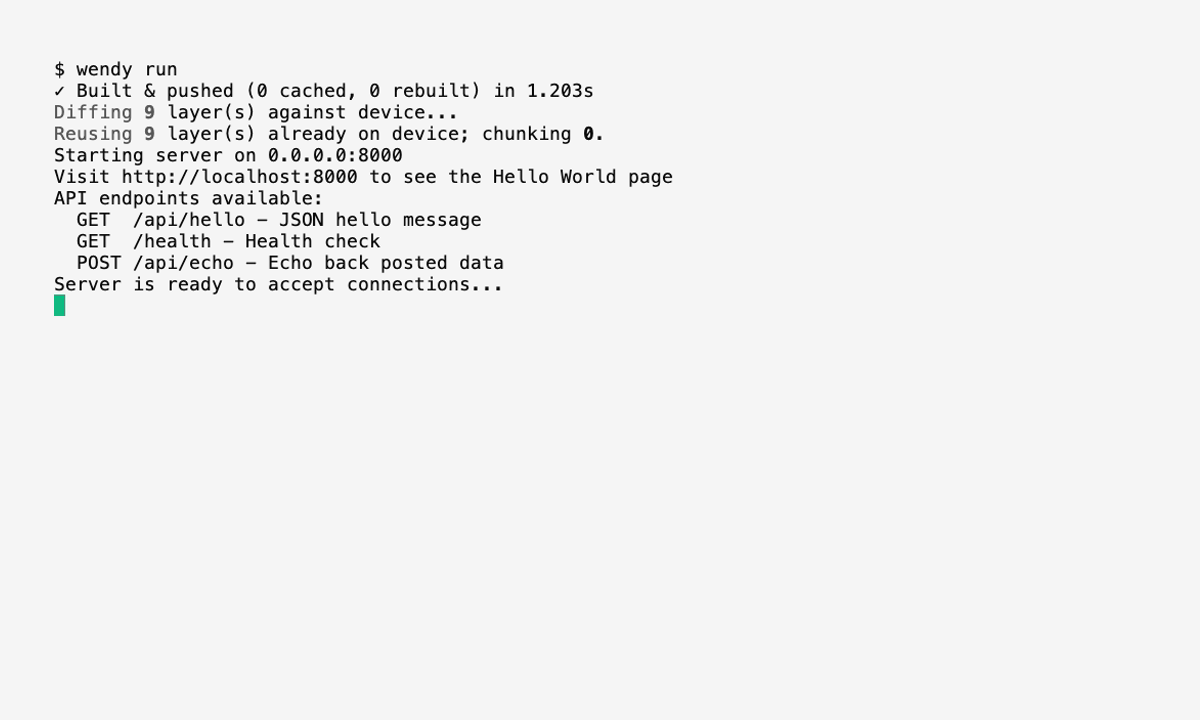
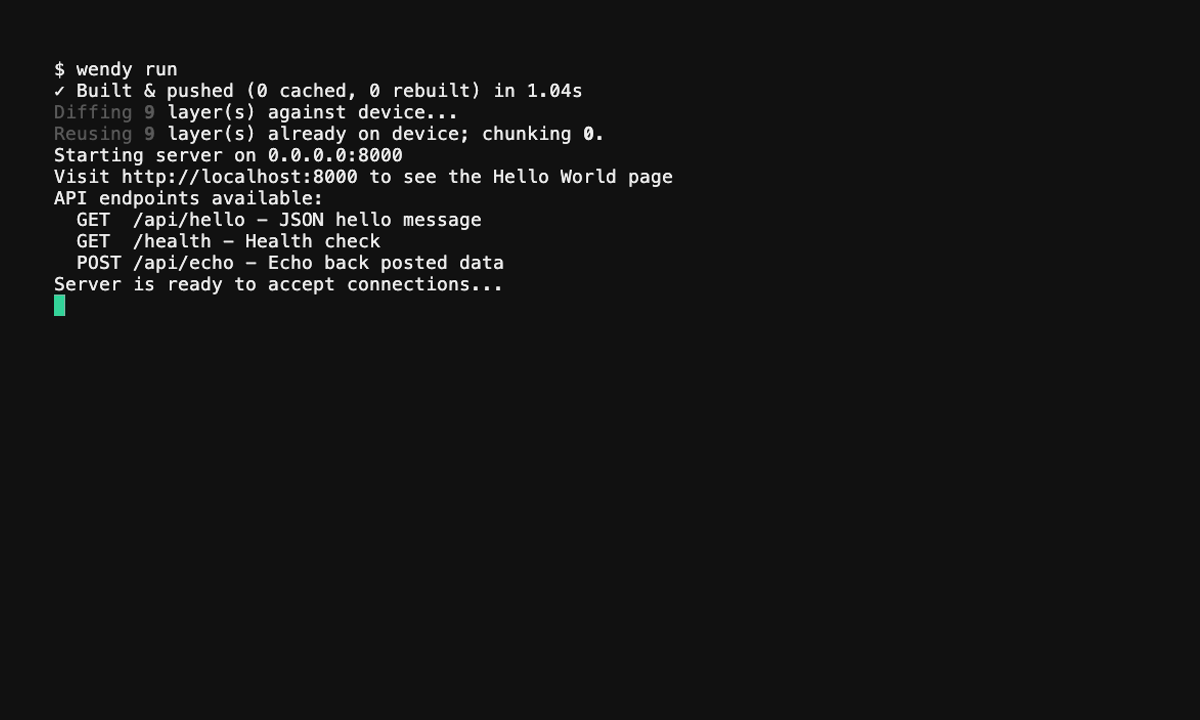
Wendy will build the app, ask you to select a device if one is not already configured, deploy the app, and print the app URL.
Code Breakdown
Project Structure
The template ships a single Swift backend that also serves a static browser UI (index.html), plus a folder of sample .wav files in assets/:
audio/
├── Package.swift
├── Dockerfile
├── wendy.json
├── .swift-version
├── index.html          # Browser UI: audio visualizer & controls
├── assets/             # Sample sounds + logo
│   ├── car-horn.wav
│   ├── magic.wav
│   ├── piano.wav
│   ├── voice.wav
│   └── wendy-logo.svg
└── Sources/
    └── audio/
        ├── main.swift             # Routes, GStreamer pipelines, WebSocket
        └── StaticFileMiddleware.swift
Setting Up the Backend
The backend uses Hummingbird for the HTTP/WebSocket server and a Swift wrapper around GStreamer for audio processing.
1. Package Dependencies
The generated Package.swift declares a minimum swift-tools-version of 6.2 (the project still builds with the Swift 6.3 toolchain in the Dockerfile) and includes the GStreamer Swift wrapper alongside Hummingbird and its WebSocket support:
// swift-tools-version: 6.2

import PackageDescription

let package = Package(
    name: "audio",
    platforms: [
        .macOS("26.0"),
    ],
    dependencies: [
        .package(url: "https://github.com/hummingbird-project/hummingbird.git", from: "2.21.1"),
        .package(url: "https://github.com/hummingbird-project/hummingbird-websocket.git", from: "2.0.0"),
        .package(url: "https://github.com/wendylabsinc/gstreamer-swift.git", branch: "main"),
        .package(url: "https://github.com/apple/swift-container-plugin.git", from: "1.0.0"),
    ],
    targets: [
        .executableTarget(
            name: "audio",
            dependencies: [
                .product(name: "Hummingbird", package: "hummingbird", condition: nil),
                .product(name: "HummingbirdWebSocket", package: "hummingbird-websocket"),
                .product(name: "GStreamer", package: "gstreamer-swift"),
            ]
        ),
    ]
)
The build runs against Swift 6.3 (the Dockerfile uses swift:6.3-bookworm). The swift-tools-version line in Package.swift declares the minimum Package Manager version and is independent of the toolchain that compiles the code.
2. Routes
Sources/audio/main.swift wires up the HTTP routes and a WebSocket endpoint:
GET /sounds— lists the bundled.wavfiles in./assetsGET /microphones— enumerates capture devices viaarecord -lGET /speakers— enumerates output devices viaaplay -lPOST /speaker/{deviceID}— selects the active speaker (ALSAhw:card,device)POST /play/{filename}— plays a bundled sound through the selected speakerWS /stream— streams live microphone PCM to the browser; send{"switch_microphone": "<deviceID>"}to change the sourceGET /andGET {path+}— serve the bundledindex.htmlUI
3. Audio Playback Pipeline
To play a sound, the app builds a GStreamer pipeline that reads a file, parses the WAV format, converts/resamples it, and sends it to the chosen sink (a specific ALSA speaker, or autoaudiosink):
func playSound(filename: String, speaker: String?, playback: PlaybackManager) async -> Bool {
    guard let path = resolveSoundPath(filename) else { return false }
    let sink = speaker.map { "alsasink device=\($0)" } ?? "autoaudiosink"
    let description =
        "filesrc location=\"\(path)\" ! wavparse ! audioconvert ! audioresample ! \(sink)"
    do {
        let pipeline = try Pipeline(description)
        try pipeline.play()
        await playback.play(pipeline: pipeline)
        return true
    } catch {
        return false
    }
}
4. Microphone Streaming Pipeline
To stream audio, an AudioCapture actor builds a microphone source (16 kHz, mono, S16LE) and broadcasts the raw PCM buffers to every connected WebSocket client:
let source = try builder
    .withSampleRate(16_000)
    .withChannels(1)
    .withFormat(.s16le)
    .build()

captureTask = Task {
    for await buffer in source.buffers() {
        var chunk = ByteBuffer()
        _ = buffer.bytes.withUnsafeBytes { raw in
            chunk.writeBytes(raw)
        }
        guard chunk.readableBytes > 0 else { continue }
        await self.broadcast(chunk)
    }
}
Each /stream WebSocket client registers a sender, and the actor writes binary audio frames out to all of them:
wsRouter.ws("/stream") { inbound, outbound, _ in
    let clientId = UUID()
    await audioCapture.addClient(id: clientId) { buffer in
        try? await outbound.write(.binary(buffer))
    }
    // ... handle inbound switch_microphone commands ...
    await audioCapture.removeClient(id: clientId)
}
Frontend Implementation
The frontend is the bundled index.html page. It connects to the /stream WebSocket to receive binary PCM frames, plays them back with the Web Audio API, and renders a live waveform on a canvas. It also calls GET /sounds to populate the play buttons and POST /play/{filename} when you click one.
Docker Configuration
Working with audio requires system-level dependencies. The generated Dockerfile is a multi-stage build: GStreamer dev packages in the builder, and runtime GStreamer + ALSA libraries in the slim final image. It also copies the index.html UI and the assets/ sounds:
FROM swift:6.3-bookworm AS builder

RUN apt-get update && apt-get install -y --no-install-recommends \
    libgstreamer1.0-dev \
    libgstreamer-plugins-base1.0-dev \
    gstreamer1.0-plugins-base \
    gstreamer1.0-plugins-good \
    && rm -rf /var/lib/apt/lists/*

WORKDIR /app
COPY Package.swift .
COPY Sources/ Sources/
RUN swift build -c release

FROM swift:6.3-bookworm-slim

RUN apt-get update && apt-get install -y --no-install-recommends \
    libgstreamer1.0-0 \
    gstreamer1.0-tools \
    gstreamer1.0-plugins-base \
    gstreamer1.0-plugins-good \
    gstreamer1.0-alsa \
    alsa-utils \
    && rm -rf /var/lib/apt/lists/*

WORKDIR /app
COPY --from=builder /app/.build/release/audio /usr/local/bin/audio
COPY index.html /app/index.html
COPY assets/ /app/assets/

EXPOSE 6004

CMD ["audio"]
Entitlements
To access the microphone and speaker, the generated wendy.json already requests the audio entitlement (plus host networking). It also includes a readiness probe and a postStart browser hook on port 6004:
{
    "appId": "audio",
    "platform": "linux",
    "version": "0.1.0",
    "entitlements": [
        {
            "type": "network",
            "mode": "host"
        },
        {
            "type": "audio"
        }
    ],
    "readiness": {
        "tcpSocket": { "port": 6004 },
        "timeoutSeconds": 30
    },
    "hooks": {
        "postStart": {
            "cli": "wendy utils open-browser http://${WENDY_HOSTNAME}:6004"
        }
    }
}
The readiness probe waits for port 6004 to accept connections. The postStart hook automatically opens the web interface in your browser.
Run Again on WendyOS
- Connect your WendyOS device.
- Run the application:
wendy run- Your browser will open automatically once the app is ready. If it doesn't, navigate to
http://<device-hostname>.local:6004.
You should be able to click buttons to play sounds on the device and toggle the microphone to see the waveform of the audio captured by the device.
Troubleshooting Audio
If audio isn't working:
-
Check Hardware: Ensure your microphone/speaker is selected in the system settings or properly connected via USB.
-
Check Logs: Docker logs will show GStreamer errors.
wendy device logs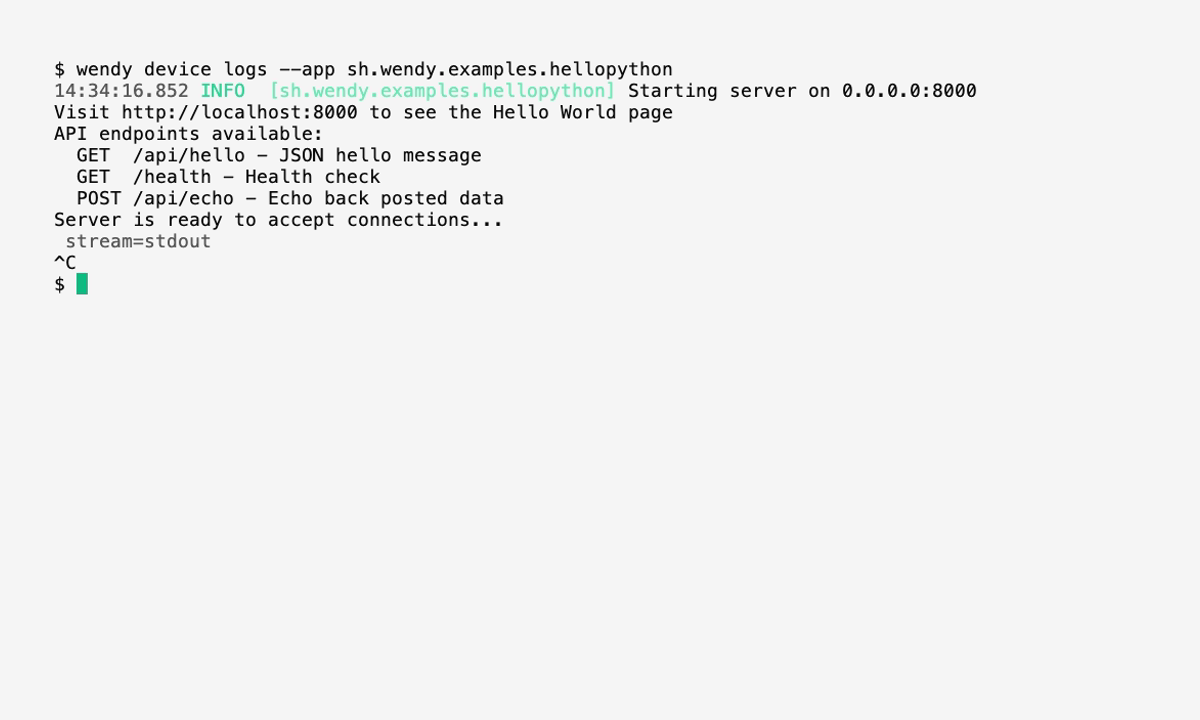
-
ALSA Devices: The app attempts to auto-detect ALSA devices. You can override this by setting the
AUDIO_DEVICEenvironment variable (e.g.,hw:1,0).