Audio Playback & Streaming
Learn how to play sounds and stream microphone audio using Python and ALSA on WendyOS
Audio Playback & Streaming
Source Code: The complete source code for this example is available at github.com/wendylabsinc/samples/python/audio
In this guide, we'll build an audio application that demonstrates two key capabilities:
- Audio Playback: Triggering sound effects on the device from a web interface, played through GStreamer to an ALSA speaker.
- Microphone Streaming: Capturing live PCM audio from the device's microphone with GStreamer and streaming it to a web client over a WebSocket, where it's rendered as a waveform.
This demonstrates how to drive audio capture and playback with GStreamer and ALSA inside a Python container.
Prerequisites
- Wendy CLI installed
- A WendyOS device with a speaker and microphone (or a USB audio interface)
Recommended Hardware: For the best experience, we recommend using a USB speakerphone like the Anker PowerConf plugged into your NVIDIA Jetson via USB. It provides high-quality audio capture and playback in a single device.
Setting Up Your Project
Initialize the Project
wendy init audio --target wendyos --language python --template audio --var APP_ID=audio --var PORT=3004 --assistant skip --git-init no
cd audio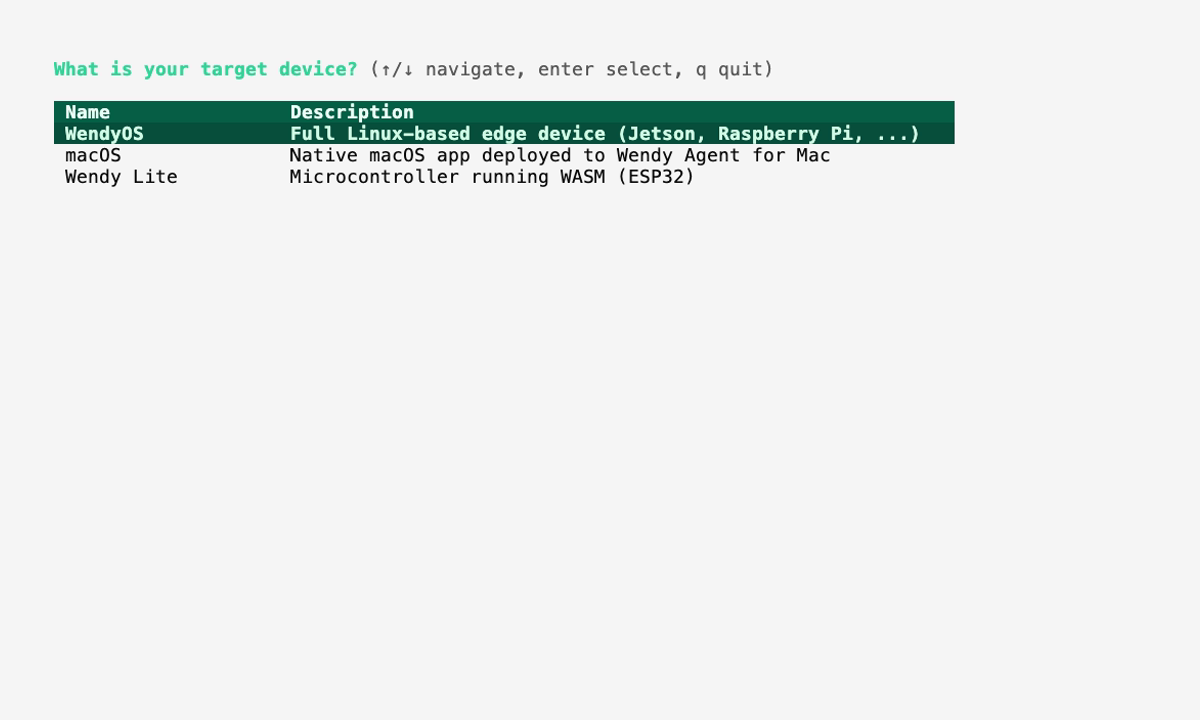
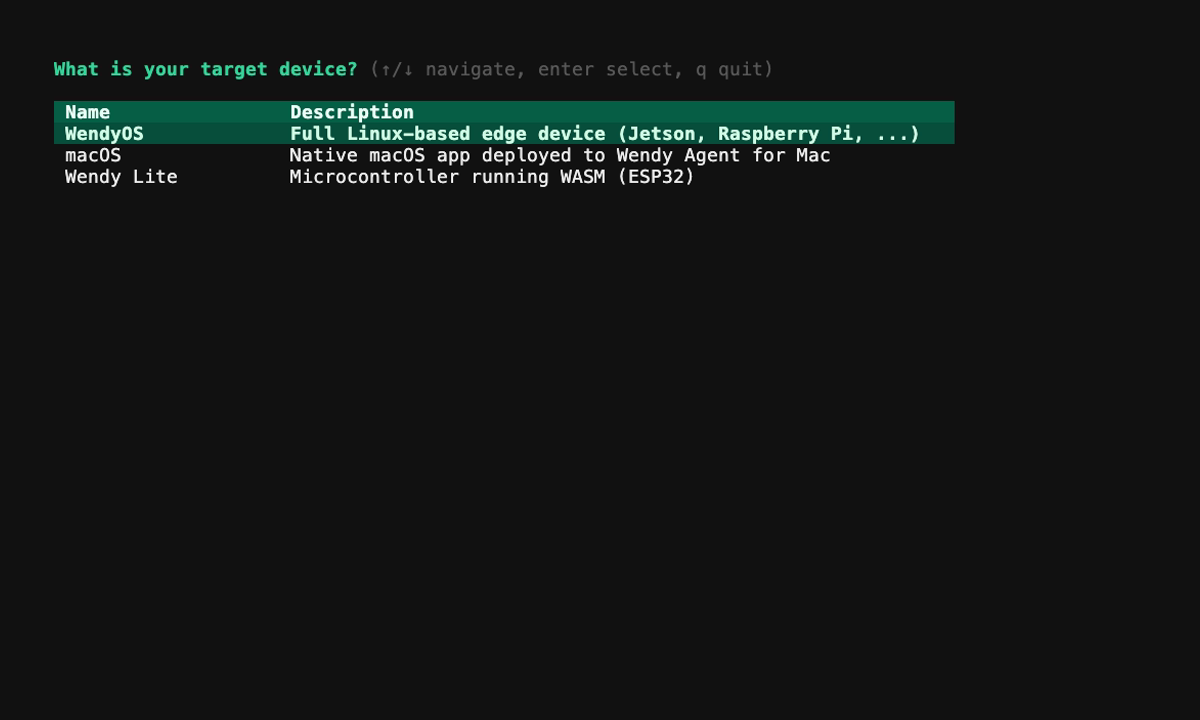
The template creates the Wendy config, Dockerfile, frontend, and backend files with the audio entitlement already wired. The sections below explain the generated project.
Run on WendyOS
wendy run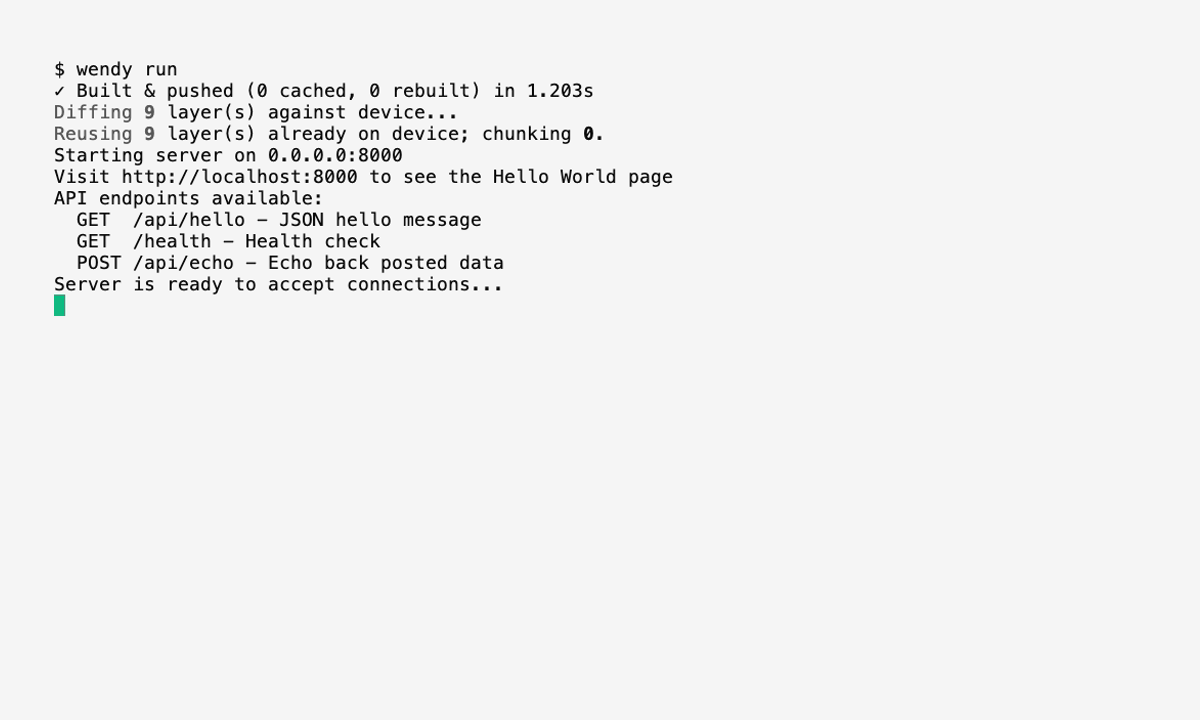
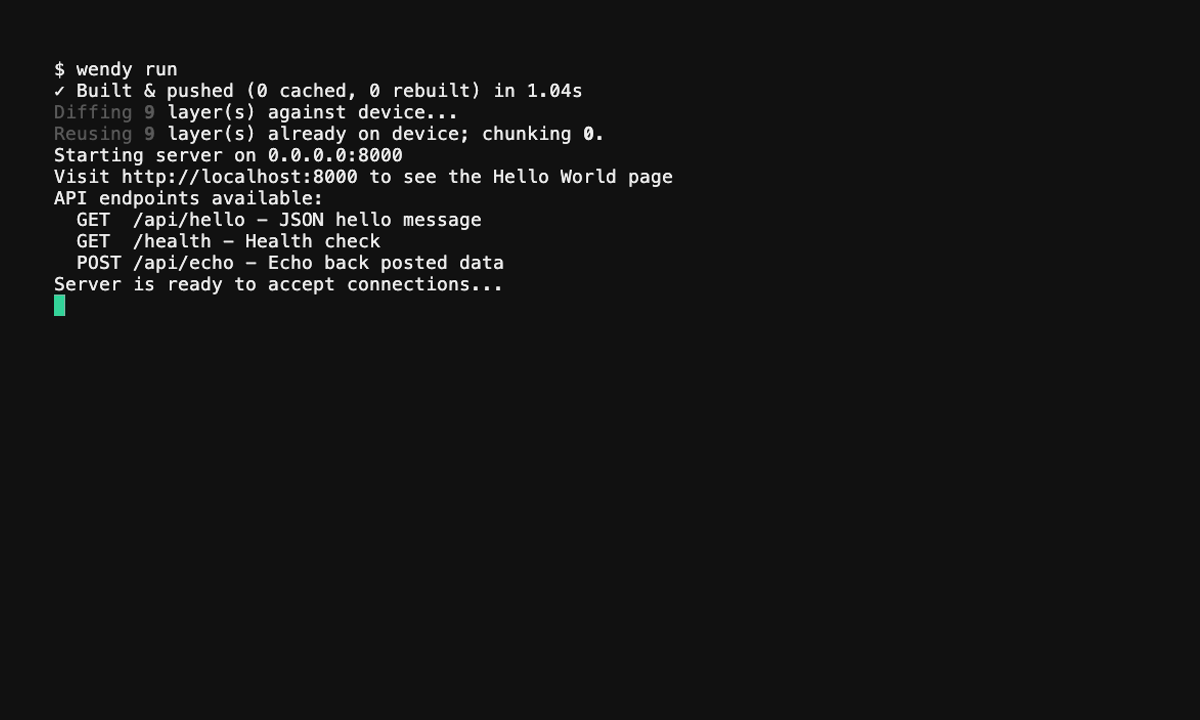
Wendy will build the app, ask you to select a device if one is not already configured, deploy the app, and print the app URL.
Code Breakdown
Project Structure
The template generates a single-file frontend (index.html) and a single-file backend (app.py), plus a few sample WAV files under assets/:
audio/
├── Dockerfile
├── wendy.json
├── requirements.txt
├── app.py            # FastAPI + GStreamer backend
├── index.html        # Waveform visualizer & controls (Tailwind via CDN)
└── assets/           # Bundled sound effects + logo
    ├── car-horn.wav
    ├── magic.wav
    ├── piano.wav
    ├── voice.wav
    └── wendy-logo.svg
Setting Up the Backend
The backend uses FastAPI for the HTTP API and WebSockets. Audio capture and playback are driven by GStreamer pipelines using the ALSA plugins (alsasrc / alsasink). ALSA devices are enumerated by parsing arecord -l / aplay -l.
1. Dependencies
The requirements.txt is just FastAPI and Uvicorn — GStreamer comes from the system packages installed in the Dockerfile:
fastapi
uvicorn[standard]
2. Audio Playback
To play a sound, the backend builds a GStreamer pipeline that reads a WAV file from assets/ and sends it to the selected ALSA speaker (falling back to the first detected speaker, then autoaudiosink):
@app.post("/play/{filename}")
async def play_sound(filename: str):
    """Play a wav file from ./assets on the device speaker via GStreamer."""
    filepath = _assets_dir / filename
    if not filepath.exists() or not filename.endswith(".wav"):
        return JSONResponse(content={"error": "not found"}, status_code=404)

    if _current_speaker:
        sink = f'alsasink device="{_current_speaker}"'
    else:
        speakers = _list_speakers()
        sink = f'alsasink device="{speakers[0]["id"]}"' if speakers else "autoaudiosink"

    desc = f'filesrc location="{filepath}" ! wavparse ! audioconvert ! audioresample ! {sink}'
    pipeline = Gst.parse_launch(desc)
    pipeline.set_state(Gst.State.PLAYING)
    # ... a background thread watches the bus for EOS/ERROR, then tears the pipeline down ...
    return JSONResponse(content={"status": "playing", "file": filename})
The UI discovers playable sounds via GET /sounds, and available output devices via GET /speakers. Selecting a speaker posts to /speaker/{device_id}.
3. Microphone Streaming
Microphone capture is an alsasrc pipeline resampled to S16LE mono 16 kHz, ending in an appsink. Each captured buffer is pushed to every connected client's queue:
def _start_pipeline(self) -> Gst.Pipeline | None:
    appsink = "appsink name=sink emit-signals=true max-buffers=4 drop=true sync=false"
    pcm_caps = "audio/x-raw,format=S16LE,channels=1,rate=16000"
    # tries the selected device, then each device from `arecord -l`, then a generic alsasrc
    desc = f'alsasrc device="{dev}" ! audioconvert ! audioresample ! {pcm_caps} ! {appsink}'
    # ... parse_launch, probe PAUSED state, return the first pipeline that prerolls ...

def _on_new_sample(self, sink):
    sample = sink.emit("pull-sample")
    buf = sample.get_buffer()
    ok, mapinfo = buf.map(Gst.MapFlags.READ)
    data = bytes(mapinfo.data)
    buf.unmap(mapinfo)
    with self._lock:
        for q in self.queues.values():
            try:
                q.put_nowait(data)
            except asyncio.QueueFull:
                pass
    return Gst.FlowReturn.OK
The WebSocket endpoint streams those raw PCM bytes to the browser and accepts a switch_microphone command to change the active input device:
@app.websocket("/stream")
async def websocket_stream(websocket: WebSocket):
    await websocket.accept()
    q = await audio.add_client(websocket)

    async def send_audio():
        while True:
            data = await q.get()
            await websocket.send_bytes(data)

    async def recv_commands():
        try:
            while True:
                msg = json.loads(await websocket.receive_text())
                if "switch_microphone" in msg:
                    await audio.switch_microphone(msg["switch_microphone"])
        except WebSocketDisconnect:
            pass

    try:
        done, pending = await asyncio.wait(
            [asyncio.create_task(send_audio()), asyncio.create_task(recv_commands())],
            return_when=asyncio.FIRST_COMPLETED,
        )
        for t in pending:
            t.cancel()
    finally:
        audio.remove_client(websocket)
The backend also exposes GET /microphones, GET /logs, and GET /debug, and serves the UI at GET /.
Frontend Implementation
The frontend is a single index.html (Tailwind via CDN). It draws a fullscreen waveform on a <canvas> and renders buttons for the bundled sounds plus microphone/speaker pickers. It connects to /stream and receives raw PCM frames as binary:
const canvas = document.getElementById("waveform");
const ctx = canvas.getContext("2d");

ws = new WebSocket(`${proto}//${location.host}/stream`);
ws.binaryType = "arraybuffer";
ws.onmessage = (e) => {
  if (e.data instanceof ArrayBuffer) {
    // interpret as Int16 PCM samples and push into the waveform ring buffer
  } else {
    // JSON control messages (e.g. mic_switched)
  }
};
Buttons are populated from /sounds; clicking one POSTs to /play/{file}. The microphone dropdown is filled from /microphones and triggers a switch_microphone command; the speaker dropdown is filled from /speakers and posts to /speaker/{id}.
Docker Configuration
The Dockerfile uses a slim Debian base with GStreamer (including the ALSA plugin), alsa-utils, and the GStreamer Python bindings. It creates a virtualenv with system site packages so import gi works:
FROM debian:bookworm-slim

RUN apt-get update && apt-get install -y --no-install-recommends \
    python3 \
    python3-pip \
    python3-venv \
    python3-gi \
    gir1.2-gst-plugins-base-1.0 \
    gir1.2-gst-plugins-bad-1.0 \
    gir1.2-gstreamer-1.0 \
    gstreamer1.0-tools \
    gstreamer1.0-plugins-base \
    gstreamer1.0-plugins-good \
    gstreamer1.0-plugins-bad \
    gstreamer1.0-plugins-ugly \
    gstreamer1.0-libav \
    gstreamer1.0-nice \
    gstreamer1.0-alsa \
    alsa-utils \
    && rm -rf /var/lib/apt/lists/*

WORKDIR /app

RUN python3 -m venv --system-site-packages /app/venv
ENV PATH="/app/venv/bin:$PATH"

COPY requirements.txt .
RUN pip install --no-cache-dir -r requirements.txt

COPY app.py index.html ./
COPY assets/ ./assets/

ENV PYTHONUNBUFFERED=1

ARG WENDY_DEVICE_TYPE
ARG WENDY_DEBUG=false
ENV WENDY_DEVICE_TYPE=${WENDY_DEVICE_TYPE}
ENV WENDY_DEBUG=${WENDY_DEBUG}
RUN if [ "$WENDY_DEBUG" = "true" ]; then pip install --no-cache-dir debugpy; fi

EXPOSE 3004

CMD ["/app/venv/bin/uvicorn", "app:app", "--host", "0.0.0.0", "--port", "3004"]
Entitlements
To access the microphone and speaker, the application needs the audio entitlement in wendy.json. This grants the container access to /dev/snd. The generated file:
{
    "appId": "audio",
    "platform": "linux",
    "version": "0.1.0",
    "entitlements": [
        {
            "type": "network",
            "mode": "host"
        },
        {
            "type": "audio"
        }
    ],
    "readiness": {
        "tcpSocket": { "port": 3004 },
        "timeoutSeconds": 30
    },
    "hooks": {
        "postStart": {
            "cli": "wendy utils open-browser http://${WENDY_HOSTNAME}:3004"
        }
    }
}
The readiness probe waits for port 3004 to accept connections. The postStart hook automatically opens the web interface in your browser.
Run Again on WendyOS
- Connect your WendyOS device.
- Run the application:
wendy run- Your browser will open automatically once the app is ready. If it doesn't, navigate to
http://<device-hostname>.local:3004.
Troubleshooting
- No devices listed: The backend enumerates devices with
arecord -l/aplay -l(provided byalsa-utils). If the dropdowns are empty, confirm a USB audio device is connected and checkGET /debugto see what the app detected. - No Audio:
- Check volume levels on the device (
alsamixervia SSH). - Pick a specific output from the speaker dropdown — the app uses
alsasink device="hw:<card>,<dev>"for the selected device and falls back toautoaudiosinkotherwise.
- Check volume levels on the device (
- Permissions: If you see "Permission denied" errors accessing
/dev/snd, ensure theaudioentitlement is present inwendy.json.