Raspberry Pi Zero 2 W Installation
Install WendyOS on your Raspberry Pi Zero 2 W
What You'll Need
| Component | Amazon | Seeed Studio | Alibaba | SparkFun |
|---|---|---|---|---|
| Raspberry Pi Zero 2 W | Buy | Buy | Buy | Buy |
| Micro USB to USB-C Cable | Buy | Buy | Buy | Buy |
| MicroSD Card 128GB | Buy | Buy | Buy | Buy |
| MicroSD to SD Card Adapter | Buy | Buy | Buy | Buy |
Installing WendyOS on Raspberry Pi Zero 2 W
This guide will walk you through installing WendyOS on your Raspberry Pi Zero 2 W.
Performance Considerations: While the Pi Zero 2 W is a powerful machine, we highly recommend using it for lightweight workloads only. We do not recommend running Vision AI models on this device. Use at your discretion.
Prerequisites
Before you begin, make sure you have:
- Raspberry Pi Zero 2 W - The device itself
- Micro USB cable - Either a micro USB to USB-C or micro USB to USB-A cable, depending on your computer's ports
- Micro SD card - At least 16GB of storage for WendyOS
- Wendy CLI - Installed on your development machine (see install the Wendy CLI)
Installation Steps
Connect Your Device
Connect your Raspberry Pi Zero 2 W to your computer using a USB cable.
wendy discoverVerify that your Pi Zero 2 W appears in the list of discovered devices.
Flash WendyOS
Use the Wendy CLI to flash WendyOS to your Pi Zero 2 W:
wendy install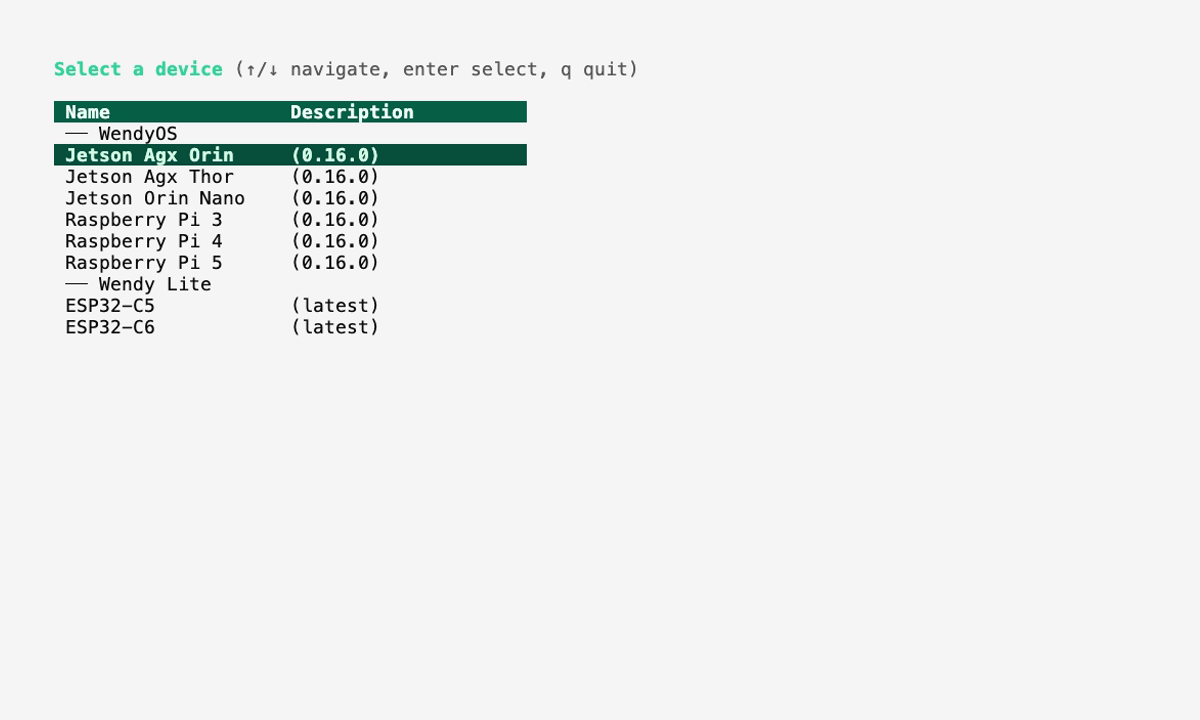
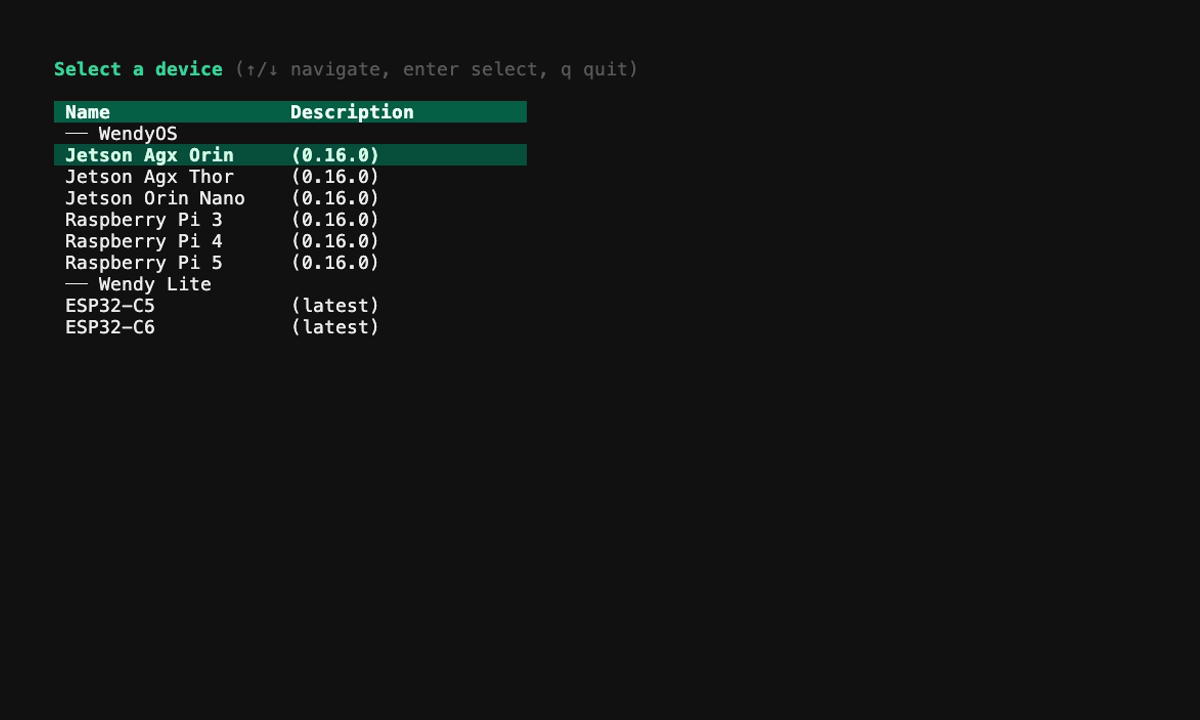
Select Raspberry Pi Zero 2 W and then select your drive. This process may take several minutes. The CLI will show progress updates.
The CLI also offers optional first-boot provisioning — joining WiFi, applying critical updates, and pre-enrolling the device to Wendy Cloud. Each can also be set up after the device boots. See wendy install for more.
Verify Installation
Once flashing is complete, verify the installation:
wendy device infoYou should see your Raspberry Pi Zero 2 W running WendyOS.
Discover Your Device
Wait about 1 minute after connecting your Pi Zero 2 W to allow WendyOS to fully boot. Then run:
wendy discoverYou should see your Raspberry Pi Zero 2 W appear in the list of discovered devices.
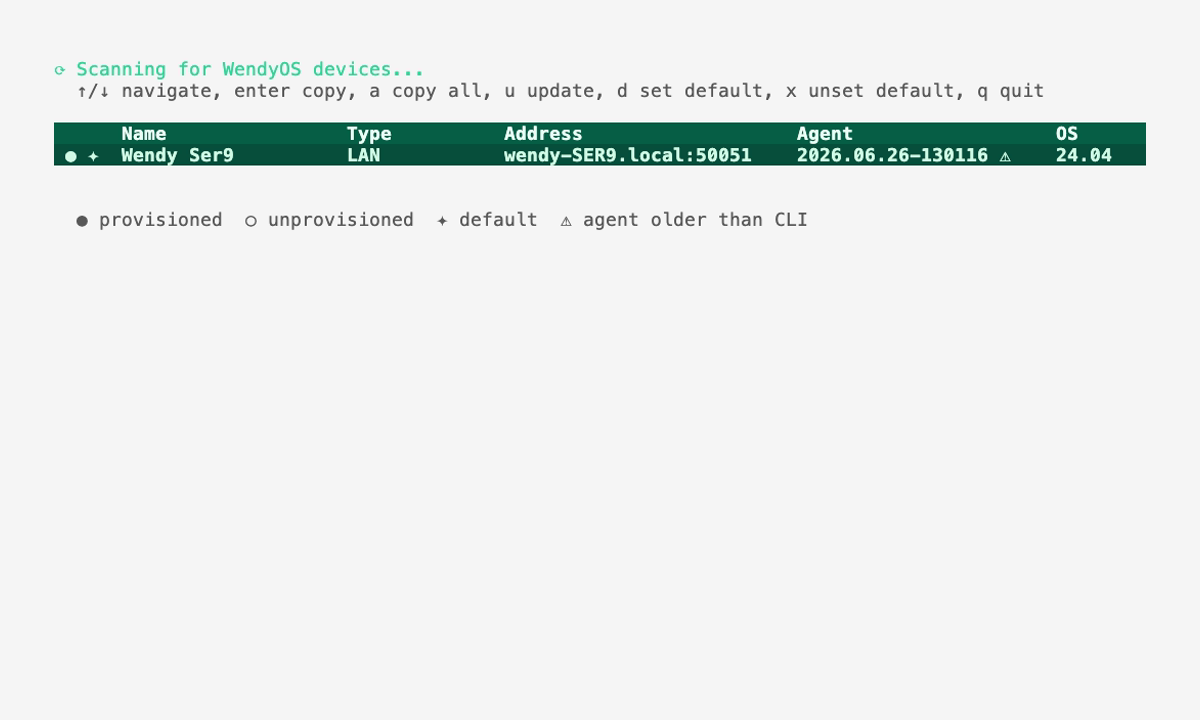
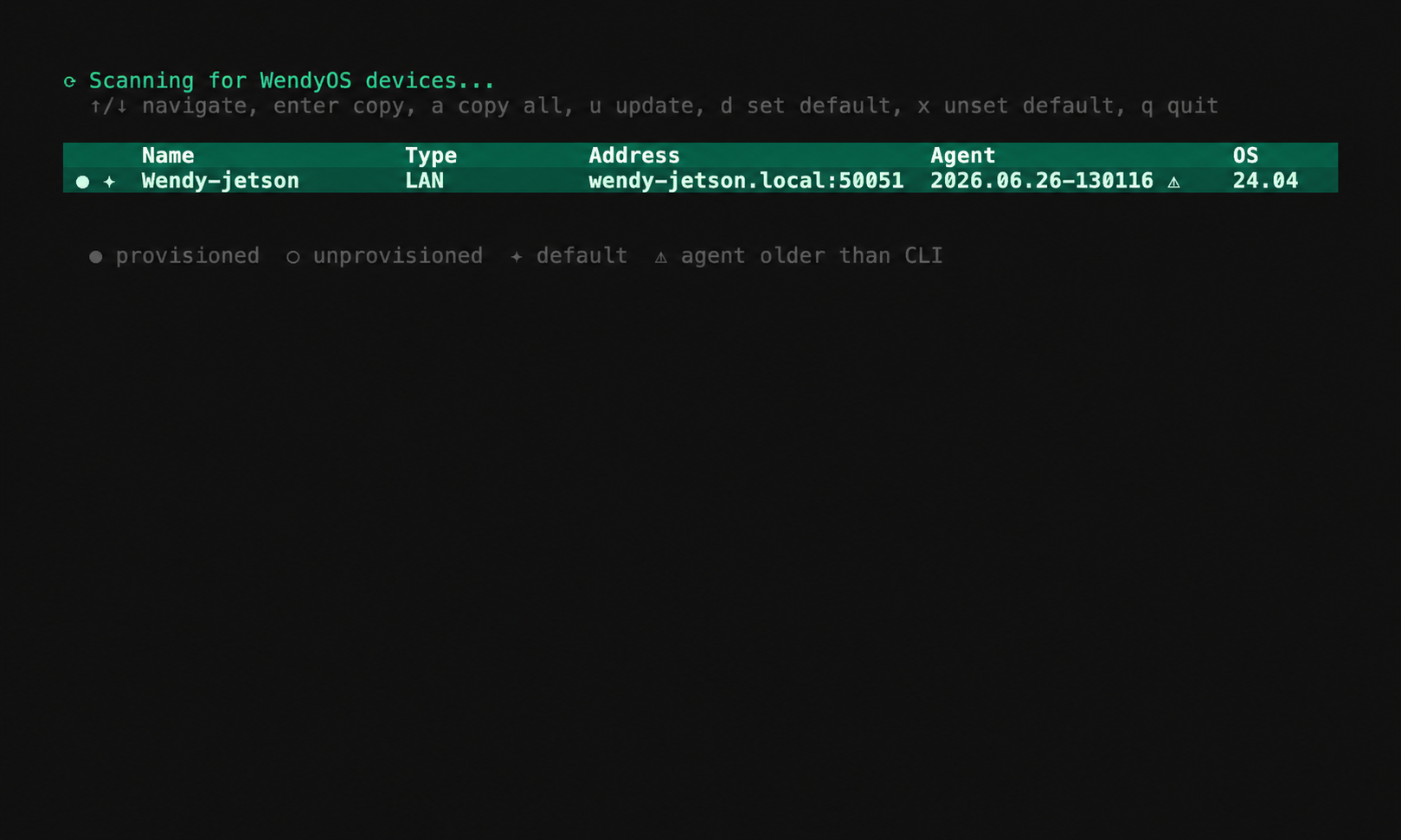
Your device is now ready for development!
Next Steps
Now that WendyOS is installed, you can start deploying apps to your device. Check out the Hello World Guide to build your first app.