Program a simulated robot
Watch a Go2 walk, edit a Python patrol app, and deploy your own route.
You'll run a simulated Go2 on your computer, then change its patrol route in Python. You do not need a physical robot, a Cloud account, or Python installed locally.
Before you start
Use macOS or Linux with enough memory to give the VM 4 GiB and four virtual CPUs. Allow several minutes for the first downloads and build, plus disk space for OS and container images. Apple Silicon runs the VM with hardware acceleration; x86 computers use slower emulation.
On macOS, install Homebrew if you do not have it. Wendy offers to install Docker Desktop and QEMU through Homebrew. On Linux, install and start Docker with Buildx first; Wendy offers to install QEMU through apt-get or dnf.
Windows users can follow the app tutorial in WSL2.
1. Install Wendy
Run these commands in a terminal on your computer, or skip this step if wendy --version already works:
curl -fsSL https://install.wendy.dev/cli.sh | bash
wendy --version
You should see a version number. If the command is not found, open a new terminal and retry.
2. Watch the first walk
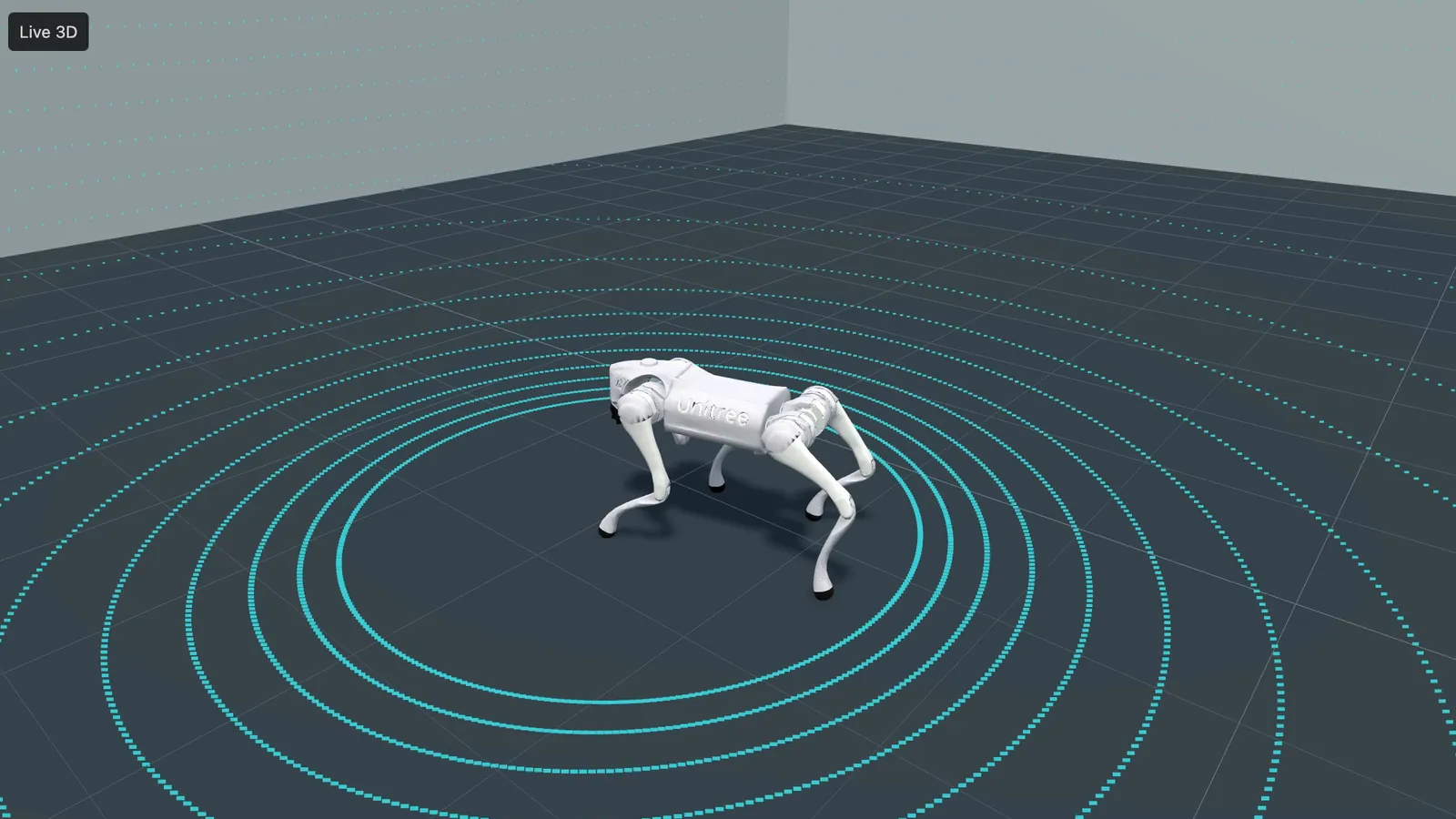
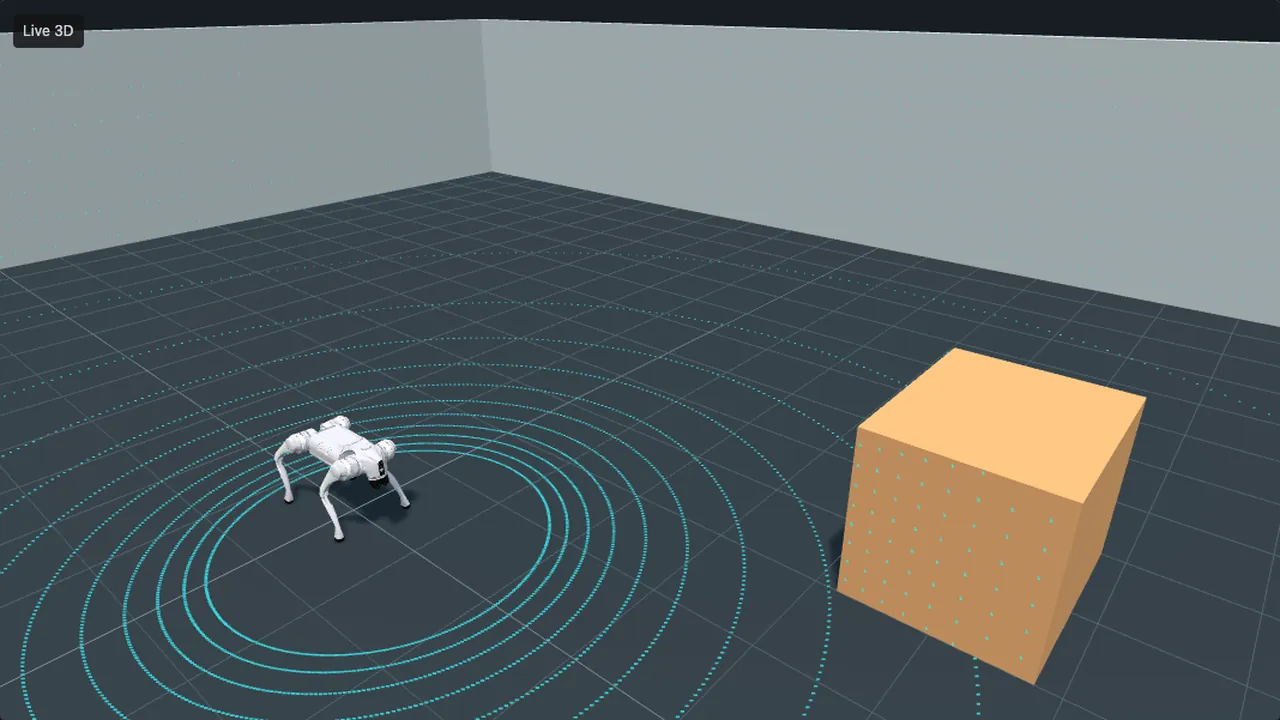
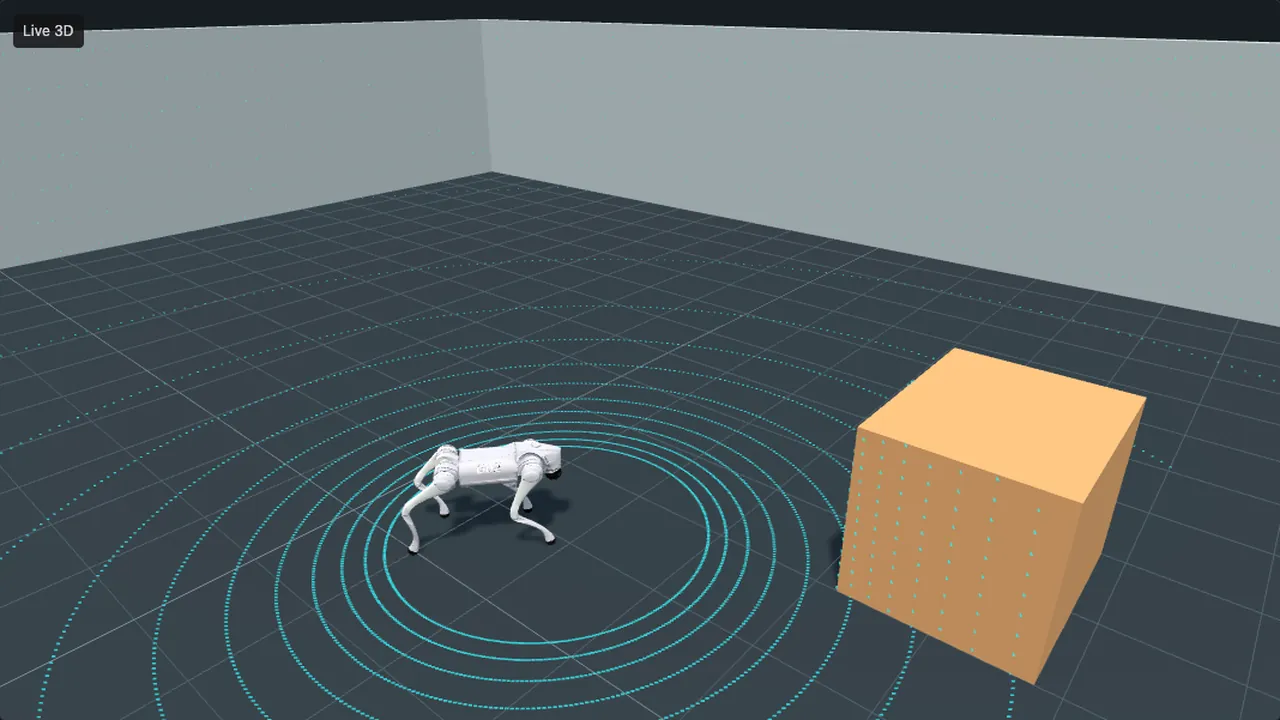
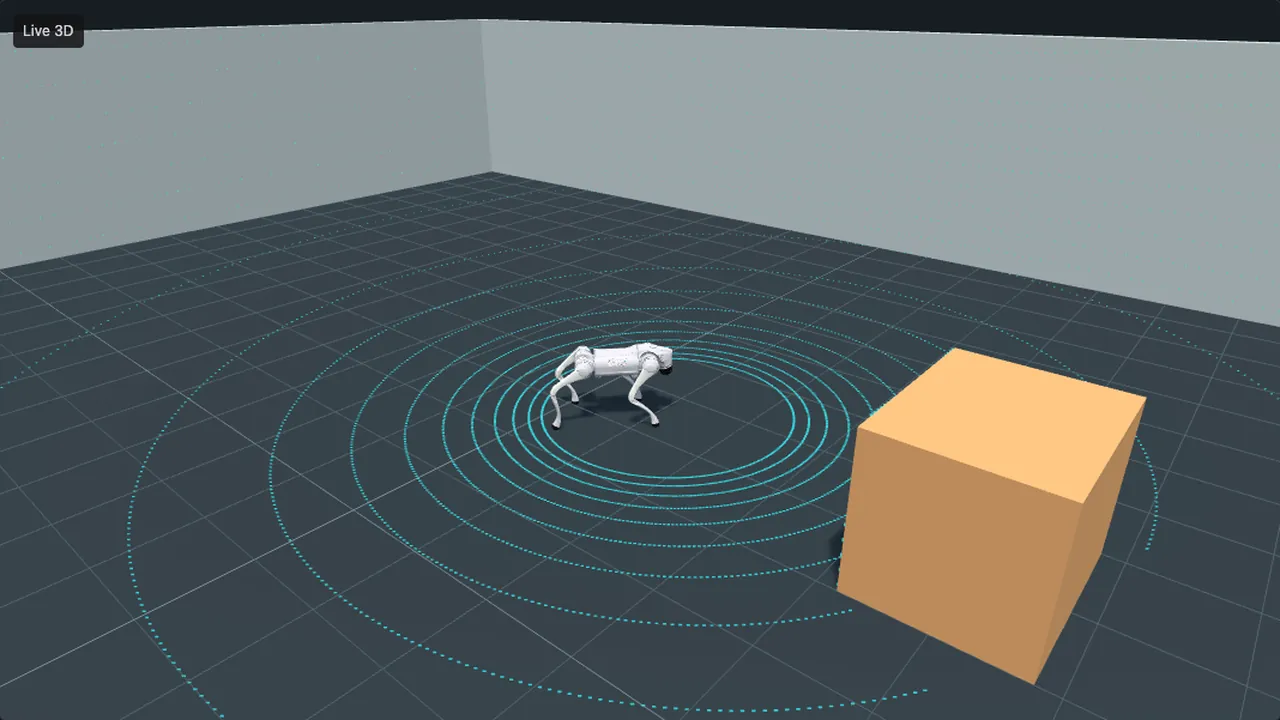
wendy tour --simulatorAccept the dependency installation prompts if needed. Wendy creates a Go2 virtual device and opens its 3D viewer in your browser. The robot walks an arc for five seconds, then stops. Wendy checks that its position changed and movement stopped. Keep the terminal open for the next step.
Loading recording…
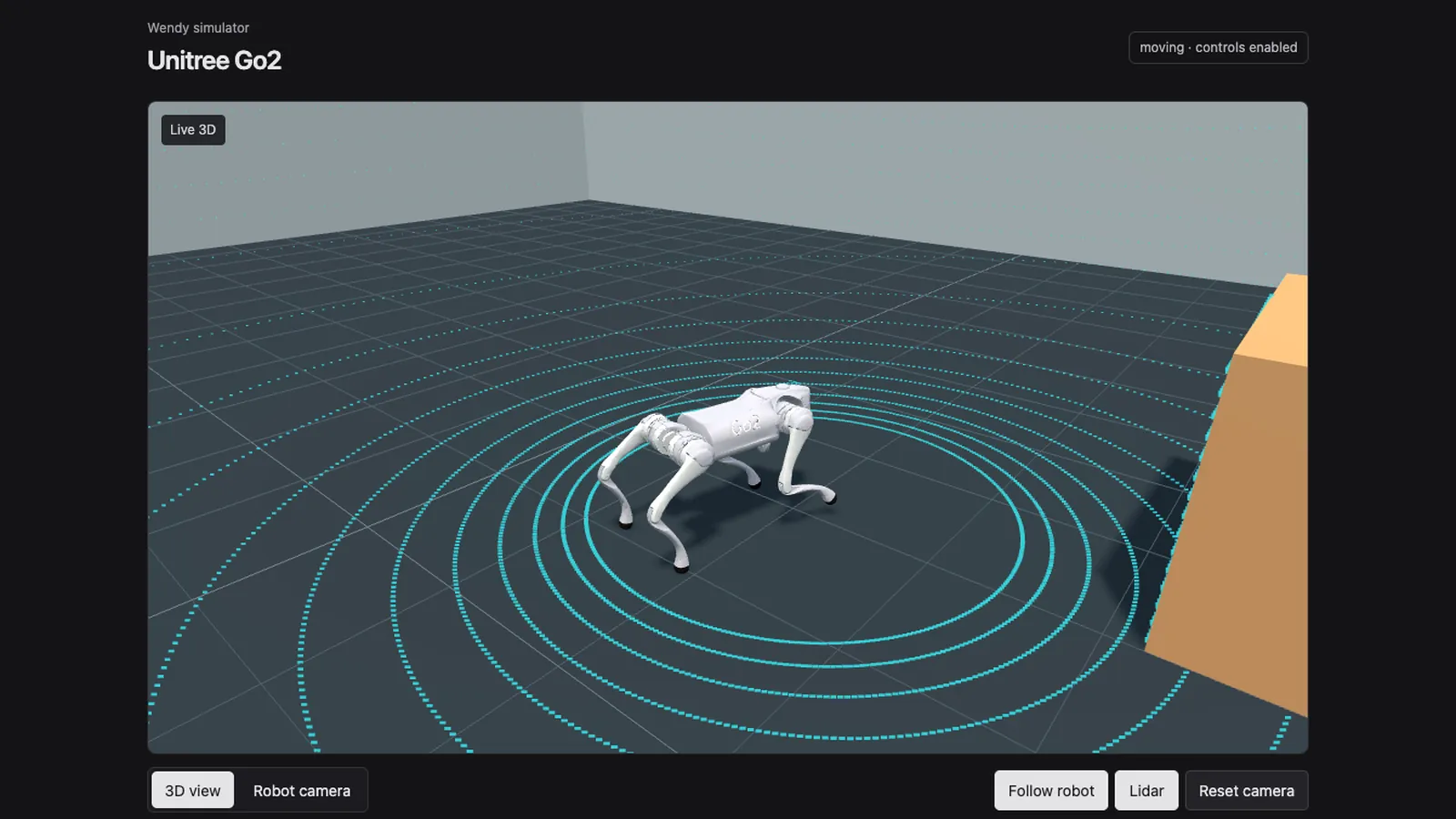
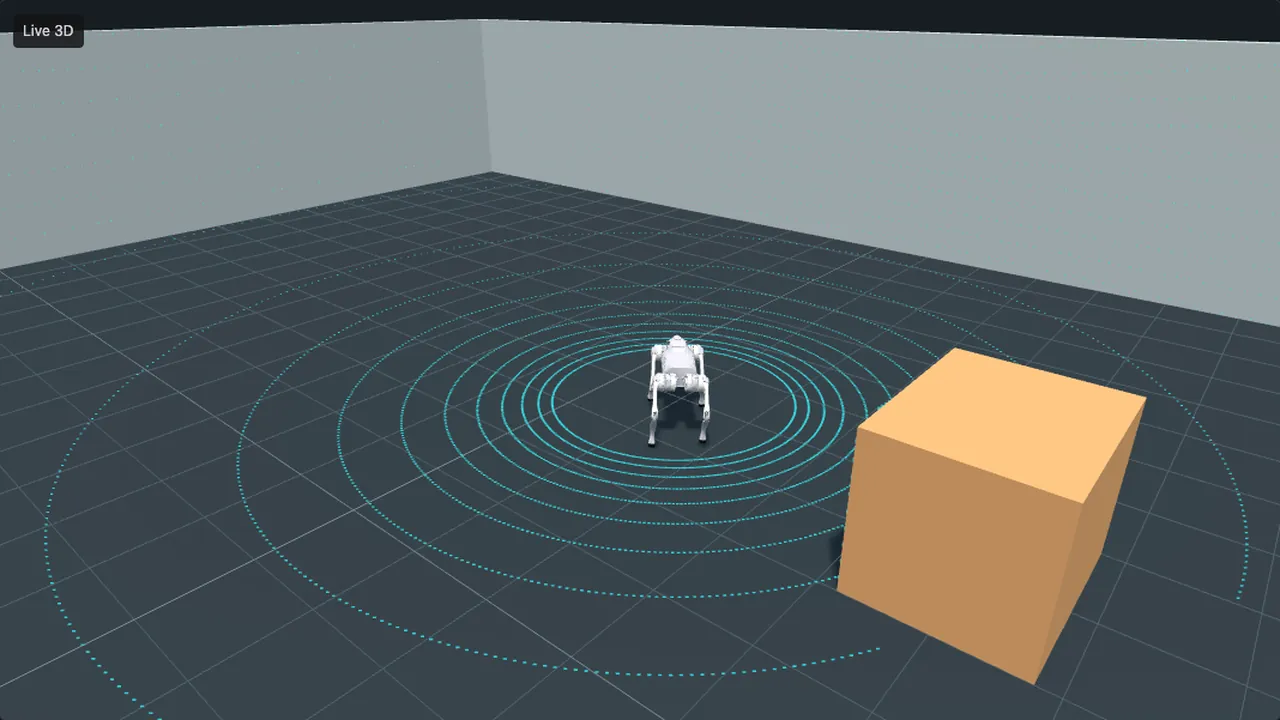
If setup fails, fix the issue shown in the terminal and choose retry. See simulator troubleshooting for startup problems. Repeating the command reuses your saved virtual device.
3. Write your robot's route
In the terminal, choose Build a robot app, then Waypoint patrol.
Wendy creates a Python project and prints the path to patrol.py. Open that file
in your editor. The default project is under
~/Documents/wendy-robot-tour/apps/patrol.
Loading recording…
Find DEFAULT_WAYPOINTS. Change the pair (1.0, 1.0) to (1.5, 1.0) and save.
Each pair is a distance forward and left in metres, relative to the robot's
starting position. This extends one corner of the default square by half a metre.
-DEFAULT_WAYPOINTS = ((1.0, 0.0), (1.0, 1.0), (0.0, 1.0), (0.0, 0.0))
+DEFAULT_WAYPOINTS = ((1.0, 0.0), (1.5, 1.0), (0.0, 1.0), (0.0, 0.0))
Choose Deploy to this simulator, then Start route. Deployment alone does not start movement. Watch the robot follow the route in the same browser viewer and stop when it finishes. Your Python app chooses the route; the simulator handles balance and walking.
Loading recording…
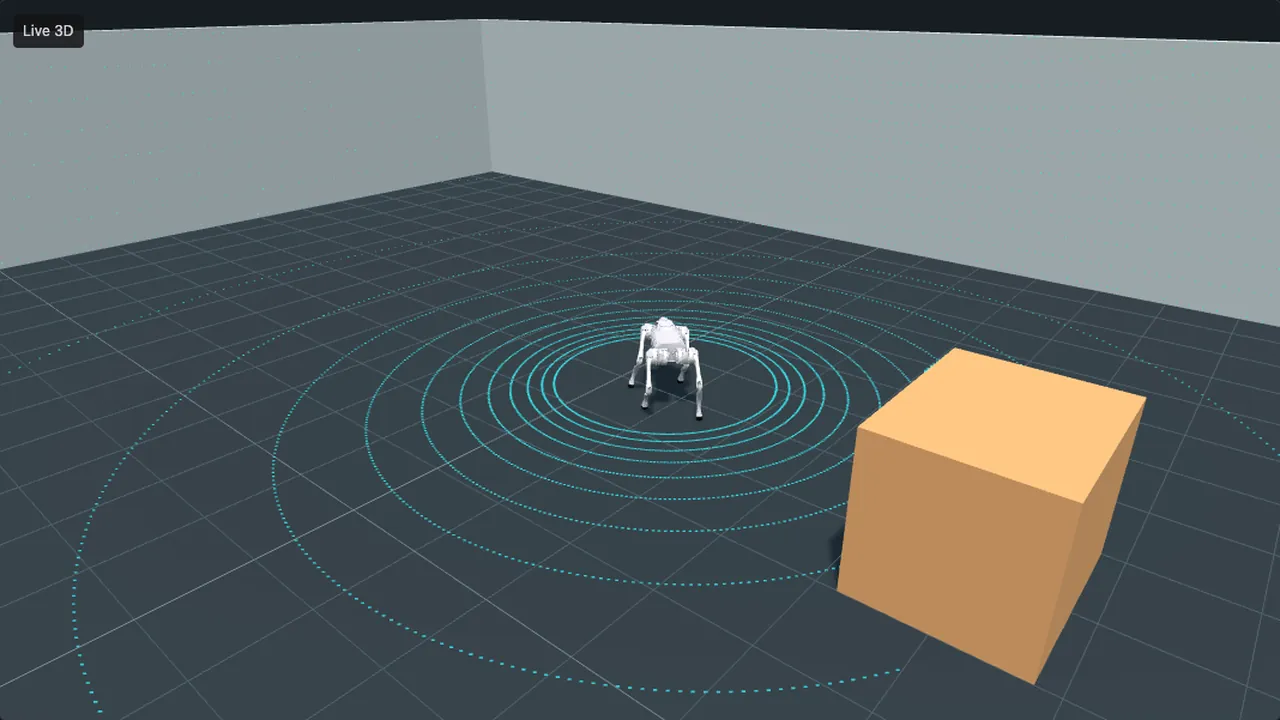
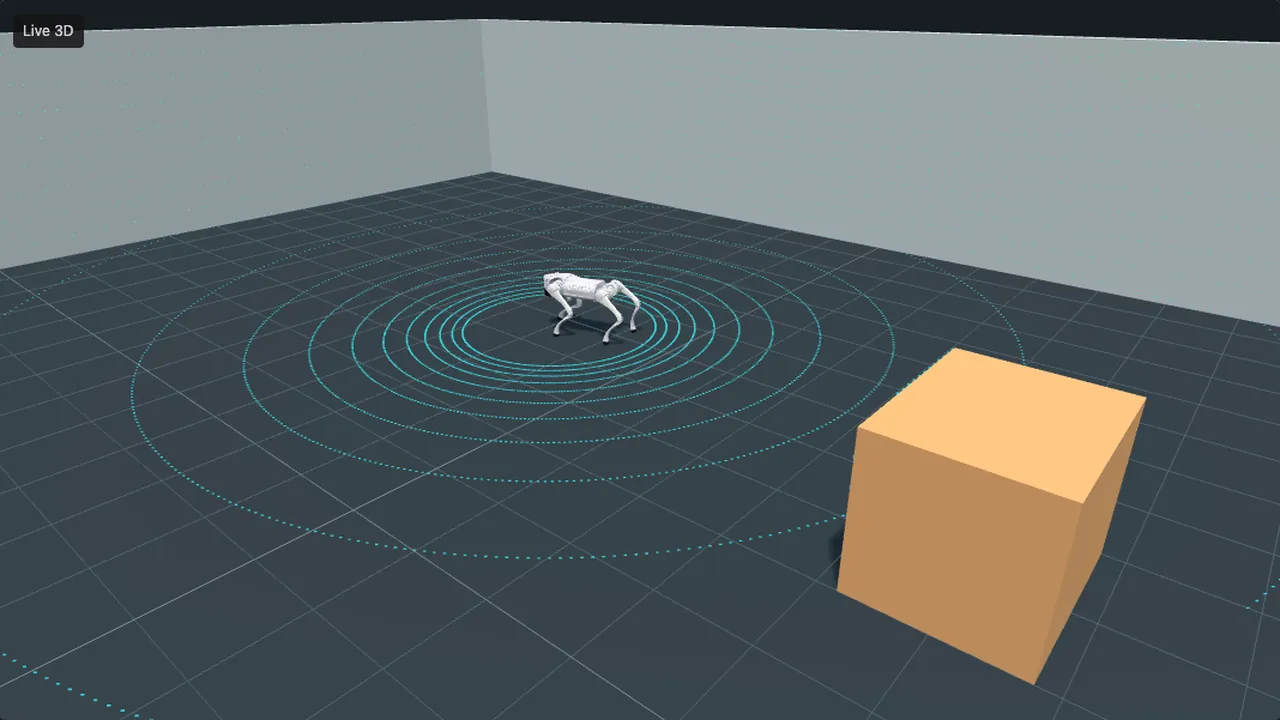
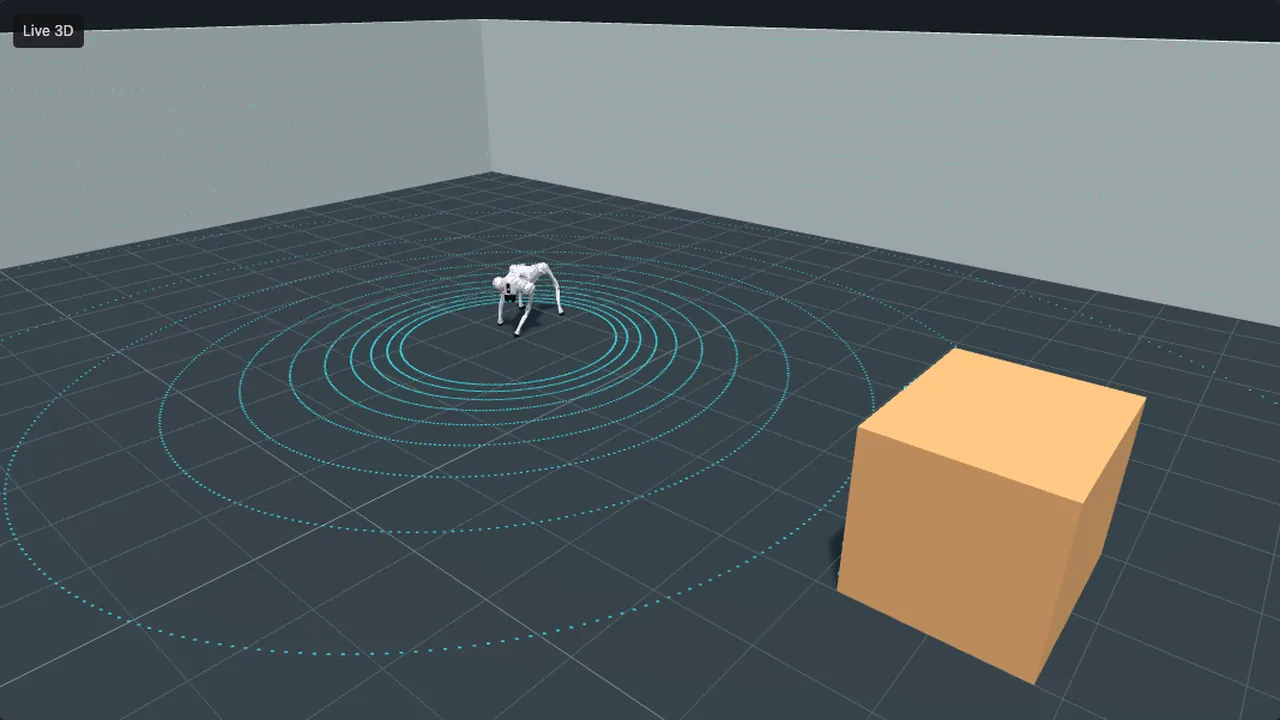
4. Deploy another change
Change (1.5, 1.0) back to (1.0, 1.0) and save. Choose Deploy saved changes,
then Start route again. This time, the requested route is a one-metre square.
You have now edited, deployed, and run your own robot app twice.
Loading recording…
If the robot does not move, check the terminal for a route error and release any manual controls in the viewer before retrying.
5. Stop and resume
Return to the main guide, choose Finish for now, and choose to stop the
simulator. Your project and edits stay on disk. If you exit with Ctrl+C instead,
use the wendy vm stop command printed by the tour to shut down the VM too.
Loading recording…
To return later:
wendy tour --simulatorChoose Build a robot app and Waypoint patrol again to reopen your saved project.
Next steps
- Try Obstacle-aware roaming in the same guide to make the robot react to lidar readings. The tour reference explains the other projects and movement settings.
- Deploy your first app to use the same edit-and-deploy loop with a web server.
- When you have a robot, follow sim to real to move your app onto hardware.